

build 7bbbddf7 | content blog-content@c8490fa · 338 posts | profiles 20 · corpus 267 | 0 skipped | | format
apiVersion: soultec.ch/v1kind: Postmetadata: name: send-workspace-one-hub-notifications locale: en labels: author: valentina-cicmak series: how-to capability/modern-workplace: 2.11 annotations: source: blog-content/posts/en/send-workspace-one-hub-notifications.md route: /en/insights/send-workspace-one-hub-notifications/ schema: /nerd/schema/posts.json markdown: /en/insights/send-workspace-one-hub-notifications.mdspec: title: Send Workspace ONE Hub Notifications to All Users date: 2026-06-29 author: valentina-cicmak locale: en summary: >- In this guide, you will learn how to send a notification to users through Workspace ONE Hub Services. capabilities: [modern-workplace] series: how-to hero: /blog-assets/send-workspace-one-hub-notifications/hero.webp legacySlug: send-workspace-one-hub-notifications migrated: 2026-08-24 draft: false sections: - body: | In this guide, you will learn how to send a notification to users through Workspace ONE Hub Services. This can be useful when you need to inform employees about maintenance, outages, changes, or important internal updates. The guide also explains why some users may not receive standard notifications and why the priority setting is important. This guide is meant for a basic administrative use case. Your environment, user groups, naming, and notification settings may be different. ### Cause In some environments, users may not receive normal Hub notifications if they are not actively signed in to Intelligent Hub on their mobile device. This can happen because users do not open the Intelligent Hub app regularly or because their session has expired. ### Solution If the notification is important and should reach users even when they are not currently active in Intelligent Hub, set the priority to Urgent. This increases the chance that the notification is delivered as a push notification to the device. Open Workspace ONE Hub Services in your browser. Then go to Notifications & Banners on the left side. ![](/blog-assets/send-workspace-one-hub-notifications/01.webp) Click New. ![](/blog-assets/send-workspace-one-hub-notifications/02.webp) Then select Create Notification. ![](/blog-assets/send-workspace-one-hub-notifications/03.webp) For Priority, select Urgent. ![](/blog-assets/send-workspace-one-hub-notifications/04.webp) - heading:

Final Test

body: | After publishing, test the notification with a small group or a test user first if possible. Verify that the notification appears in Intelligent Hub and that push notifications are received on mobile devices. If users do not receive the notification, check whether the correct target audience was selected, whether push notifications are allowed on the device, whether Intelligent Hub is installed, and whether the priority was set to Urgent. If these checks are successful, your Workspace ONE Hub notification is ready. - heading:

Next Steps

body: | If you've read this far then chances are you are still having issues. [Feel free to reach out to us](https://soultec.ch/contact-us/). We're happy to help out!status: corpus: 267 alsoLike: - {ref: posts/how-to-igel-ud-pocket-bios-uefi-settings, score: 1.00} - {ref: posts/how-to-fix-workspace-one-admin-assistant-parsing-failed-macos, score: 1.00} - {ref: solutions/microsoft/microsoft-teams, score: 0.85}
{ "apiVersion": "soultec.ch/v1", "kind": "Post", "metadata": { "name": "send-workspace-one-hub-notifications", "locale": "en", "labels": { "author": "valentina-cicmak", "series": "how-to", "capability/modern-workplace": "2.11" }, "annotations": { "source": "blog-content/posts/en/send-workspace-one-hub-notifications.md", "route": "/en/insights/send-workspace-one-hub-notifications/", "schema": "/nerd/schema/posts.json", "markdown": "/en/insights/send-workspace-one-hub-notifications.md" } }, "spec": { "title": "Send Workspace ONE Hub Notifications to All Users", "date": "2026-06-29", "author": "valentina-cicmak", "locale": "en", "summary": "In this guide, you will learn how to send a notification to users through Workspace ONE Hub Services.", "capabilities": [ "modern-workplace" ], "series": "how-to", "hero": "/blog-assets/send-workspace-one-hub-notifications/hero.webp", "legacySlug": "send-workspace-one-hub-notifications", "migrated": "2026-08-24", "draft": false }, "sections": [ { "body": "In this guide, you will learn how to send a notification to users through Workspace ONE Hub Services. This can be useful when you need to inform employees about maintenance, outages, changes, or important internal updates.\n\nThe guide also explains why some users may not receive standard notifications and why the priority setting is important.\n\nThis guide is meant for a basic administrative use case. Your environment, user groups, naming, and notification settings may be different.\n\n### Cause\n\nIn some environments, users may not receive normal Hub notifications if they are not actively signed in to Intelligent Hub on their mobile device. This can happen because users do not open the Intelligent Hub app regularly or because their session has expired.\n\n### Solution\n\nIf the notification is important and should reach users even when they are not currently active in Intelligent Hub, set the priority to Urgent. This increases the chance that the notification is delivered as a push notification to the device.\n\nOpen Workspace ONE Hub Services in your browser. Then go to Notifications & Banners on the left side.\n\n![](/blog-assets/send-workspace-one-hub-notifications/01.webp)\n\nClick New.\n\n![](/blog-assets/send-workspace-one-hub-notifications/02.webp)\n\nThen select Create Notification.\n\n![](/blog-assets/send-workspace-one-hub-notifications/03.webp)\n\nFor Priority, select Urgent.\n\n![](/blog-assets/send-workspace-one-hub-notifications/04.webp)" }, { "heading": "

Final Test

",
"body": "After publishing, test the notification with a small group or a test user first if possible.\n\nVerify that the notification appears in Intelligent Hub and that push notifications are received on mobile devices.\n\nIf users do not receive the notification, check whether the correct target audience was selected, whether push notifications are allowed on the device, whether Intelligent Hub is installed, and whether the priority was set to Urgent.\n\nIf these checks are successful, your Workspace ONE Hub notification is ready." }, { "heading": "

Next Steps

",
"body": "If you've read this far then chances are you are still having issues. [Feel free to reach out to us](https://soultec.ch/contact-us/). We're happy to help out!" } ], "status": { "corpus": 267, "alsoLike": [ { "ref": "posts/how-to-igel-ud-pocket-bios-uefi-settings", "score": "1.00" }, { "ref": "posts/how-to-fix-workspace-one-admin-assistant-parsing-failed-macos", "score": "1.00" }, { "ref": "solutions/microsoft/microsoft-teams", "score": "0.85" } ] }}
apiVersion = "soultec.ch/v1"kind = "Post"[metadata]name = "send-workspace-one-hub-notifications"locale = "en"[metadata.labels]author = "valentina-cicmak"series = "how-to""capability/modern-workplace" = "2.11"[metadata.annotations]source = "blog-content/posts/en/send-workspace-one-hub-notifications.md"route = "/en/insights/send-workspace-one-hub-notifications/"schema = "/nerd/schema/posts.json"markdown = "/en/insights/send-workspace-one-hub-notifications.md"[spec]title = "Send Workspace ONE Hub Notifications to All Users"date = 2026-06-29author = "valentina-cicmak"locale = "en"summary = "In this guide, you will learn how to send a notification to users through Workspace ONE Hub Services."capabilities = ["modern-workplace"]series = "how-to"hero = "/blog-assets/send-workspace-one-hub-notifications/hero.webp"legacySlug = "send-workspace-one-hub-notifications"migrated = 2026-08-24draft = false[[sections]]body = '''In this guide, you will learn how to send a notification to users through Workspace ONE Hub Services. This can be useful when you need to inform employees about maintenance, outages, changes, or important internal updates.The guide also explains why some users may not receive standard notifications and why the priority setting is important.This guide is meant for a basic administrative use case. Your environment, user groups, naming, and notification settings may be different.### CauseIn some environments, users may not receive normal Hub notifications if they are not actively signed in to Intelligent Hub on their mobile device. This can happen because users do not open the Intelligent Hub app regularly or because their session has expired.### SolutionIf the notification is important and should reach users even when they are not currently active in Intelligent Hub, set the priority to Urgent. This increases the chance that the notification is delivered as a push notification to the device.Open Workspace ONE Hub Services in your browser. Then go to Notifications & Banners on the left side.![](/blog-assets/send-workspace-one-hub-notifications/01.webp)Click New.![](/blog-assets/send-workspace-one-hub-notifications/02.webp)Then select Create Notification.![](/blog-assets/send-workspace-one-hub-notifications/03.webp)For Priority, select Urgent.![](/blog-assets/send-workspace-one-hub-notifications/04.webp)'''[[sections]]heading = "

Final Test

"
body = '''After publishing, test the notification with a small group or a test user first if possible.Verify that the notification appears in Intelligent Hub and that push notifications are received on mobile devices.If users do not receive the notification, check whether the correct target audience was selected, whether push notifications are allowed on the device, whether Intelligent Hub is installed, and whether the priority was set to Urgent.If these checks are successful, your Workspace ONE Hub notification is ready.'''[[sections]]heading = "

Next Steps

"
body = "If you've read this far then chances are you are still having issues. [Feel free to reach out to us](https://soultec.ch/contact-us/). We're happy to help out!"[status]corpus = 267[[status.alsoLike]]ref = "posts/how-to-igel-ud-pocket-bios-uefi-settings"score = "1.00"[[status.alsoLike]]ref = "posts/how-to-fix-workspace-one-admin-assistant-parsing-failed-macos"score = "1.00"[[status.alsoLike]]ref = "solutions/microsoft/microsoft-teams"score = "0.85"
<?xml version="1.0" encoding="UTF-8"?><manifest kind="Post"> <apiVersion>soultec.ch/v1</apiVersion> <metadata> <name>send-workspace-one-hub-notifications</name> <locale>en</locale> <labels> <author>valentina-cicmak</author> <series>how-to</series> <entry key="capability/modern-workplace">2.11</entry> </labels> <annotations> <source>blog-content/posts/en/send-workspace-one-hub-notifications.md</source> <route>/en/insights/send-workspace-one-hub-notifications/</route> <schema>/nerd/schema/posts.json</schema> <markdown>/en/insights/send-workspace-one-hub-notifications.md</markdown> </annotations> </metadata> <spec> <title>Send Workspace ONE Hub Notifications to All Users</title> <date>2026-06-29</date> <author>valentina-cicmak</author> <locale>en</locale> <summary>In this guide, you will learn how to send a notification to users through Workspace ONE Hub Services.</summary> <capabilities> <item>modern-workplace</item> </capabilities> <series>how-to</series> <hero>/blog-assets/send-workspace-one-hub-notifications/hero.webp</hero> <legacySlug>send-workspace-one-hub-notifications</legacySlug> <migrated>2026-08-24</migrated> <draft>false</draft> </spec> <sections> <section> <body>In this guide, you will learn how to send a notification to users through Workspace ONE Hub Services. This can be useful when you need to inform employees about maintenance, outages, changes, or important internal updates.The guide also explains why some users may not receive standard notifications and why the priority setting is important.This guide is meant for a basic administrative use case. Your environment, user groups, naming, and notification settings may be different.### CauseIn some environments, users may not receive normal Hub notifications if they are not actively signed in to Intelligent Hub on their mobile device. This can happen because users do not open the Intelligent Hub app regularly or because their session has expired.### SolutionIf the notification is important and should reach users even when they are not currently active in Intelligent Hub, set the priority to Urgent. This increases the chance that the notification is delivered as a push notification to the device.Open Workspace ONE Hub Services in your browser. Then go to Notifications &amp; Banners on the left side.![](/blog-assets/send-workspace-one-hub-notifications/01.webp)Click New.![](/blog-assets/send-workspace-one-hub-notifications/02.webp)Then select Create Notification.![](/blog-assets/send-workspace-one-hub-notifications/03.webp)For Priority, select Urgent.![](/blog-assets/send-workspace-one-hub-notifications/04.webp) </body> </section> <section> <heading>

Final Test

</heading>
<body>After publishing, test the notification with a small group or a test user first if possible.Verify that the notification appears in Intelligent Hub and that push notifications are received on mobile devices.If users do not receive the notification, check whether the correct target audience was selected, whether push notifications are allowed on the device, whether Intelligent Hub is installed, and whether the priority was set to Urgent.If these checks are successful, your Workspace ONE Hub notification is ready. </body> </section> <section> <heading>

Next Steps

</heading>
<body>If you've read this far then chances are you are still having issues. [Feel free to reach out to us](https://soultec.ch/contact-us/). We're happy to help out!</body> </section> </sections> <status> <corpus>267</corpus> <alsoLike> <item> <ref>posts/how-to-igel-ud-pocket-bios-uefi-settings</ref> <score>1.00</score> </item> <item> <ref>posts/how-to-fix-workspace-one-admin-assistant-parsing-failed-macos</ref> <score>1.00</score> </item> <item> <ref>solutions/microsoft/microsoft-teams</ref> <score>0.85</score> </item> </alsoLike> </status></manifest>
How-To · 2026-06-29

Send Workspace ONE Hub Notifications to All Users

In this guide, you will learn how to send a notification to users through Workspace ONE Hub Services.

2026-06-29Date
Valentina CicmakAuthor
2Min read
Topics Modern Workplace 2.11

In this guide, you will learn how to send a notification to users through Workspace ONE Hub Services. This can be useful when you need to inform employees about maintenance, outages, changes, or important internal updates.

The guide also explains why some users may not receive standard notifications and why the priority setting is important.

This guide is meant for a basic administrative use case. Your environment, user groups, naming, and notification settings may be different.

Cause

In some environments, users may not receive normal Hub notifications if they are not actively signed in to Intelligent Hub on their mobile device. This can happen because users do not open the Intelligent Hub app regularly or because their session has expired.

Solution

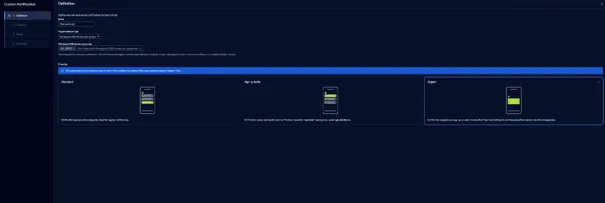
If the notification is important and should reach users even when they are not currently active in Intelligent Hub, set the priority to Urgent. This increases the chance that the notification is delivered as a push notification to the device.

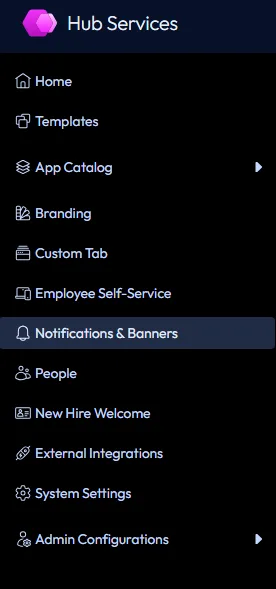
Open Workspace ONE Hub Services in your browser. Then go to Notifications & Banners on the left side.
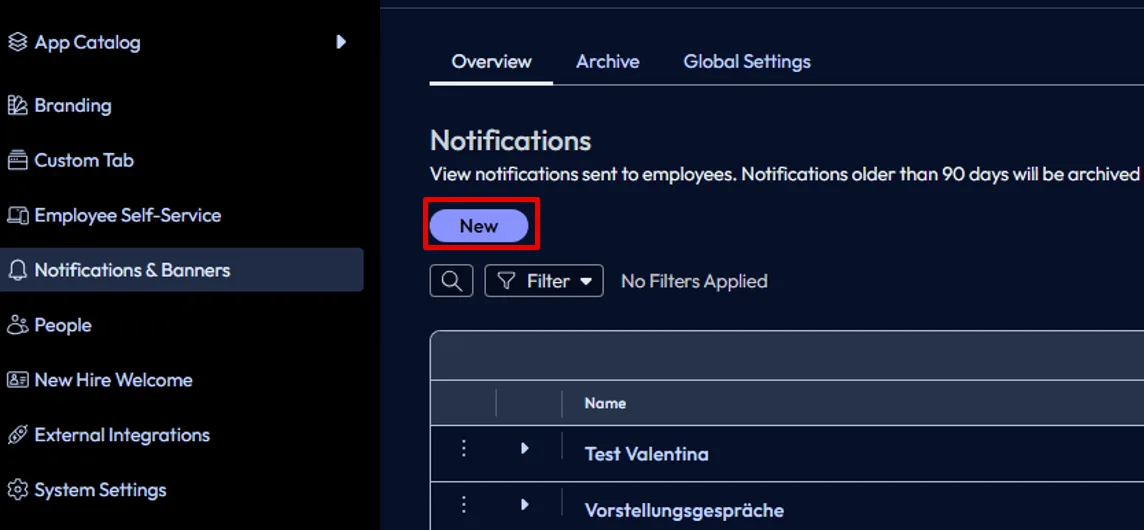
Click New.
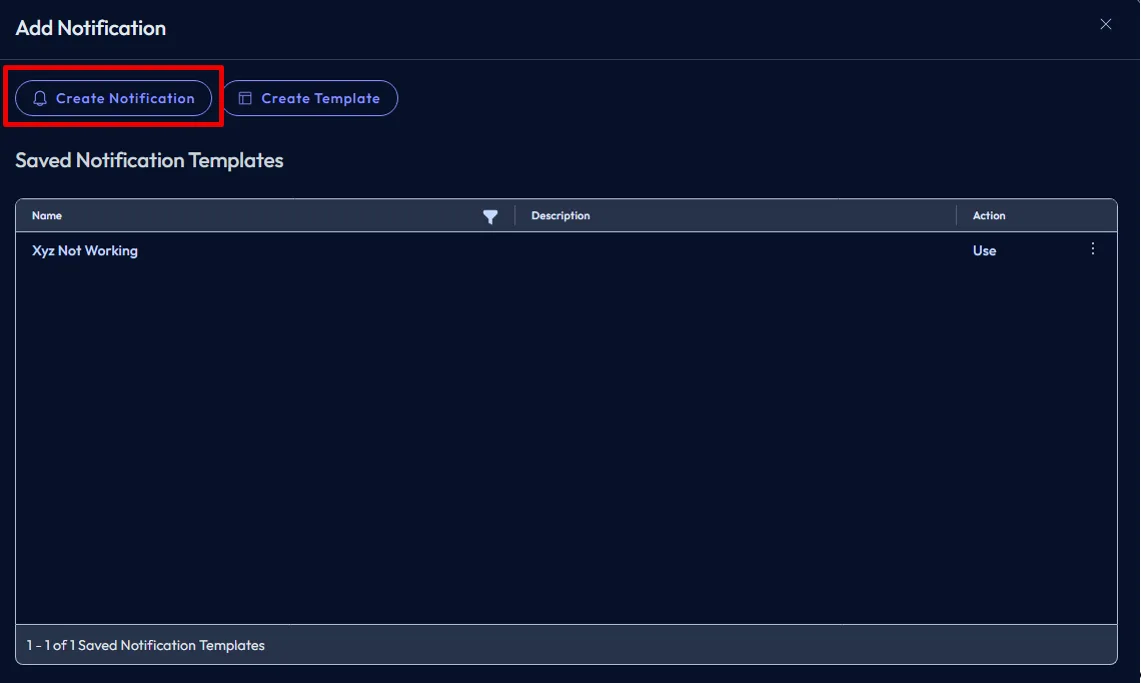
Then select Create Notification.
For Priority, select Urgent.
Final Test

After publishing, test the notification with a small group or a test user first if possible.

Verify that the notification appears in Intelligent Hub and that push notifications are received on mobile devices.

If users do not receive the notification, check whether the correct target audience was selected, whether push notifications are allowed on the device, whether Intelligent Hub is installed, and whether the priority was set to Urgent.

If these checks are successful, your Workspace ONE Hub notification is ready.

Next Steps

If you’ve read this far then chances are you are still having issues. Feel free to reach out to us. We’re happy to help out!
You might also like