

build 7bbbddf7 | content blog-content@c8490fa · 338 posts | profiles 20 · corpus 267 | 0 skipped | | format
apiVersion: soultec.ch/v1kind: Postmetadata: name: how-to-igel-ud-pocket-bios-uefi-settings locale: en labels: author: valentina-cicmak series: how-to capability/modern-workplace: 2.11 annotations: source: blog-content/posts/en/how-to-igel-ud-pocket-bios-uefi-settings.md route: /en/insights/how-to-igel-ud-pocket-bios-uefi-settings/ schema: /nerd/schema/posts.json markdown: /en/insights/how-to-igel-ud-pocket-bios-uefi-settings.mdspec: title: Boot IGEL UD Pocket – Required BIOS/UEFI Settings date: 2026-08-14 author: valentina-cicmak locale: en summary: >- The IGEL UD Pocket allows IGEL OS to run directly from a USB device without replacing the operating system installed on the computer. capabilities: [modern-workplace] series: how-to hero: /blog-assets/how-to-igel-ud-pocket-bios-uefi-settings/hero.webp legacySlug: how-to-igel-ud-pocket-bios-uefi-settings migrated: 2026-08-24 draft: false sections: - body: | The IGEL UD Pocket allows IGEL OS to run directly from a USB device without replacing the operating system installed on the computer. For this to work, the computer must support booting from USB storage and the BIOS or UEFI settings must allow it. This guide explains which settings should be checked when an IGEL UD Pocket does not appear in the boot menu or does not start correctly. ![](/blog-assets/how-to-igel-ud-pocket-bios-uefi-settings/01.webp) ### Open the Boot Menu Restart or power on the computer with the IGEL UD Pocket connected. During startup, open the computer's boot menu. The exact key depends on the hardware manufacturer. Common examples are: - HP: Esc or F9 - Lenovo: F12 - Dell: F12 - Acer: F12 - ASUS: Esc or F8 If the UD Pocket is detected correctly, an entry for the USB device should appear. It may be displayed as the name of the USB device or as a UEFI USB entry. Select the UD Pocket and press Enter. ![](/blog-assets/how-to-igel-ud-pocket-bios-uefi-settings/02.webp) ### UD Pocket Is Not Visible in the Boot Menu If the UD Pocket does not appear, enter the BIOS/UEFI configuration. Restart or power on the computer and press the BIOS/UEFI key immediately during startup. The exact key depends on the hardware manufacturer. Common examples are: HP: Esc, then F10 Lenovo: F1 or F2 Dell: F2 Acer: F2 or Delete ASUS: F2 or Delete #### Enable USB Boot Look for an option such as: `USB Boot` `Boot from USB` `External Device Boot` `USB Storage Boot` Make sure the setting is Enabled. Without USB boot support, the computer cannot start IGEL OS from the UD Pocket. ![](/blog-assets/how-to-igel-ud-pocket-bios-uefi-settings/03.webp) #### Check the Boot Mode Modern computers normally use UEFI. For IGEL OS 12, UEFI should normally be used when available. Look for settings such as: `Boot Mode` `UEFI Boot` `Legacy Boot` `CSM` For a modern IGEL OS 12 UD Pocket configuration, select UEFI. #### Check Secure Boot IGEL OS supports UEFI Secure Boot, so Secure Boot does not normally need to be disabled. However, if the UD Pocket does not boot, check whether the BIOS contains an option such as: `Allow Microsoft 3rd Party UEFI CA` If available, this option should be enabled when Secure Boot is used. ![](/blog-assets/how-to-igel-ud-pocket-bios-uefi-settings/04.webp) #### Check the Boot Order If the computer should automatically boot from the UD Pocket whenever it is connected, check the boot order. Look for: `Boot Order` `Boot Priority` `Startup Order` Place the USB device before the internal SSD or Windows Boot Manager. For occasional use, changing the permanent boot order is usually unnecessary. The one-time boot menu can simply be used instead. ![](/blog-assets/how-to-igel-ud-pocket-bios-uefi-settings/05.webp) #### Save the BIOS Settings After changing the required settings, save the configuration. This option is usually called Save & Exit. ![](/blog-assets/how-to-igel-ud-pocket-bios-uefi-settings/06.webp) Restart the computer with the IGEL UD Pocket still connected. Open the boot menu again and select the USB device. #### Start IGEL OS If the BIOS/UEFI configuration is correct, the computer should now boot from the UD Pocket and start IGEL OS directly from the USB device. The operating system installed on the internal disk remains unchanged. - heading:

Next Steps

body: | If you've read this far then chances are you are still having issues. [Feel free to reach out to us](https://soultec.ch/contact-us/). We're happy to help out!status: corpus: 267 alsoLike: - {ref: posts/how-to-fix-workspace-one-admin-assistant-parsing-failed-macos, score: 1.00} - {ref: posts/how-to-enterprise-wipe-vs-device-wipe-vs-unenroll-vs-delete-device-in-workspace-one-uem, score: 1.00} - {ref: solutions/microsoft/microsoft-teams, score: 0.85}
{ "apiVersion": "soultec.ch/v1", "kind": "Post", "metadata": { "name": "how-to-igel-ud-pocket-bios-uefi-settings", "locale": "en", "labels": { "author": "valentina-cicmak", "series": "how-to", "capability/modern-workplace": "2.11" }, "annotations": { "source": "blog-content/posts/en/how-to-igel-ud-pocket-bios-uefi-settings.md", "route": "/en/insights/how-to-igel-ud-pocket-bios-uefi-settings/", "schema": "/nerd/schema/posts.json", "markdown": "/en/insights/how-to-igel-ud-pocket-bios-uefi-settings.md" } }, "spec": { "title": "Boot IGEL UD Pocket – Required BIOS/UEFI Settings", "date": "2026-08-14", "author": "valentina-cicmak", "locale": "en", "summary": "The IGEL UD Pocket allows IGEL OS to run directly from a USB device without replacing the operating system installed on the computer.", "capabilities": [ "modern-workplace" ], "series": "how-to", "hero": "/blog-assets/how-to-igel-ud-pocket-bios-uefi-settings/hero.webp", "legacySlug": "how-to-igel-ud-pocket-bios-uefi-settings", "migrated": "2026-08-24", "draft": false }, "sections": [ { "body": "The IGEL UD Pocket allows IGEL OS to run directly from a USB device without replacing the operating system installed on the computer.\n\nFor this to work, the computer must support booting from USB storage and the BIOS or UEFI settings must allow it.\n\nThis guide explains which settings should be checked when an IGEL UD Pocket does not appear in the boot menu or does not start correctly.\n\n![](/blog-assets/how-to-igel-ud-pocket-bios-uefi-settings/01.webp)\n\n### Open the Boot Menu\n\nRestart or power on the computer with the IGEL UD Pocket connected.\n\nDuring startup, open the computer's boot menu.\n\nThe exact key depends on the hardware manufacturer. Common examples are:\n\n- HP: Esc or F9\n- Lenovo: F12\n- Dell: F12\n- Acer: F12\n- ASUS: Esc or F8\n\nIf the UD Pocket is detected correctly, an entry for the USB device should appear.\n\nIt may be displayed as the name of the USB device or as a UEFI USB entry.\n\nSelect the UD Pocket and press Enter.\n\n![](/blog-assets/how-to-igel-ud-pocket-bios-uefi-settings/02.webp)\n\n### UD Pocket Is Not Visible in the Boot Menu\n\nIf the UD Pocket does not appear, enter the BIOS/UEFI configuration.\n\nRestart or power on the computer and press the BIOS/UEFI key immediately during startup.\n\nThe exact key depends on the hardware manufacturer. Common examples are:\n\nHP: Esc, then F10 \nLenovo: F1 or F2 \nDell: F2 \nAcer: F2 or Delete \nASUS: F2 or Delete\n\n#### Enable USB Boot\n\nLook for an option such as:\n\n`USB Boot` \n`Boot from USB` \n`External Device Boot` \n`USB Storage Boot`\n\nMake sure the setting is Enabled.\n\nWithout USB boot support, the computer cannot start IGEL OS from the UD Pocket.\n\n![](/blog-assets/how-to-igel-ud-pocket-bios-uefi-settings/03.webp)\n\n#### Check the Boot Mode\n\nModern computers normally use UEFI.\n\nFor IGEL OS 12, UEFI should normally be used when available.\n\nLook for settings such as:\n\n`Boot Mode` \n`UEFI Boot` \n`Legacy Boot` \n`CSM`\n\nFor a modern IGEL OS 12 UD Pocket configuration, select UEFI.\n\n#### Check Secure Boot\n\nIGEL OS supports UEFI Secure Boot, so Secure Boot does not normally need to be disabled.\n\nHowever, if the UD Pocket does not boot, check whether the BIOS contains an option such as:\n\n`Allow Microsoft 3rd Party UEFI CA`\n\nIf available, this option should be enabled when Secure Boot is used.\n\n![](/blog-assets/how-to-igel-ud-pocket-bios-uefi-settings/04.webp)\n\n#### Check the Boot Order\n\nIf the computer should automatically boot from the UD Pocket whenever it is connected, check the boot order.\n\nLook for:\n\n`Boot Order` \n`Boot Priority` \n`Startup Order`\n\nPlace the USB device before the internal SSD or Windows Boot Manager.\n\nFor occasional use, changing the permanent boot order is usually unnecessary. The one-time boot menu can simply be used instead.\n\n![](/blog-assets/how-to-igel-ud-pocket-bios-uefi-settings/05.webp)\n\n#### Save the BIOS Settings\n\nAfter changing the required settings, save the configuration.\n\nThis option is usually called Save & Exit.\n\n![](/blog-assets/how-to-igel-ud-pocket-bios-uefi-settings/06.webp)\n\nRestart the computer with the IGEL UD Pocket still connected.\n\nOpen the boot menu again and select the USB device.\n\n#### Start IGEL OS\n\nIf the BIOS/UEFI configuration is correct, the computer should now boot from the UD Pocket and start IGEL OS directly from the USB device.\n\nThe operating system installed on the internal disk remains unchanged." }, { "heading": "

Next Steps

",
"body": "If you've read this far then chances are you are still having issues. [Feel free to reach out to us](https://soultec.ch/contact-us/). We're happy to help out!" } ], "status": { "corpus": 267, "alsoLike": [ { "ref": "posts/how-to-fix-workspace-one-admin-assistant-parsing-failed-macos", "score": "1.00" }, { "ref": "posts/how-to-enterprise-wipe-vs-device-wipe-vs-unenroll-vs-delete-device-in-workspace-one-uem", "score": "1.00" }, { "ref": "solutions/microsoft/microsoft-teams", "score": "0.85" } ] }}
apiVersion = "soultec.ch/v1"kind = "Post"[metadata]name = "how-to-igel-ud-pocket-bios-uefi-settings"locale = "en"[metadata.labels]author = "valentina-cicmak"series = "how-to""capability/modern-workplace" = "2.11"[metadata.annotations]source = "blog-content/posts/en/how-to-igel-ud-pocket-bios-uefi-settings.md"route = "/en/insights/how-to-igel-ud-pocket-bios-uefi-settings/"schema = "/nerd/schema/posts.json"markdown = "/en/insights/how-to-igel-ud-pocket-bios-uefi-settings.md"[spec]title = "Boot IGEL UD Pocket – Required BIOS/UEFI Settings"date = 2026-08-14author = "valentina-cicmak"locale = "en"summary = "The IGEL UD Pocket allows IGEL OS to run directly from a USB device without replacing the operating system installed on the computer."capabilities = ["modern-workplace"]series = "how-to"hero = "/blog-assets/how-to-igel-ud-pocket-bios-uefi-settings/hero.webp"legacySlug = "how-to-igel-ud-pocket-bios-uefi-settings"migrated = 2026-08-24draft = false[[sections]]body = '''The IGEL UD Pocket allows IGEL OS to run directly from a USB device without replacing the operating system installed on the computer.For this to work, the computer must support booting from USB storage and the BIOS or UEFI settings must allow it.This guide explains which settings should be checked when an IGEL UD Pocket does not appear in the boot menu or does not start correctly.![](/blog-assets/how-to-igel-ud-pocket-bios-uefi-settings/01.webp)### Open the Boot MenuRestart or power on the computer with the IGEL UD Pocket connected.During startup, open the computer's boot menu.The exact key depends on the hardware manufacturer. Common examples are:- HP: Esc or F9- Lenovo: F12- Dell: F12- Acer: F12- ASUS: Esc or F8If the UD Pocket is detected correctly, an entry for the USB device should appear.It may be displayed as the name of the USB device or as a UEFI USB entry.Select the UD Pocket and press Enter.![](/blog-assets/how-to-igel-ud-pocket-bios-uefi-settings/02.webp)### UD Pocket Is Not Visible in the Boot MenuIf the UD Pocket does not appear, enter the BIOS/UEFI configuration.Restart or power on the computer and press the BIOS/UEFI key immediately during startup.The exact key depends on the hardware manufacturer. Common examples are:HP: Esc, then F10 Lenovo: F1 or F2 Dell: F2 Acer: F2 or Delete ASUS: F2 or Delete#### Enable USB BootLook for an option such as:`USB Boot` `Boot from USB` `External Device Boot` `USB Storage Boot`Make sure the setting is Enabled.Without USB boot support, the computer cannot start IGEL OS from the UD Pocket.![](/blog-assets/how-to-igel-ud-pocket-bios-uefi-settings/03.webp)#### Check the Boot ModeModern computers normally use UEFI.For IGEL OS 12, UEFI should normally be used when available.Look for settings such as:`Boot Mode` `UEFI Boot` `Legacy Boot` `CSM`For a modern IGEL OS 12 UD Pocket configuration, select UEFI.#### Check Secure BootIGEL OS supports UEFI Secure Boot, so Secure Boot does not normally need to be disabled.However, if the UD Pocket does not boot, check whether the BIOS contains an option such as:`Allow Microsoft 3rd Party UEFI CA`If available, this option should be enabled when Secure Boot is used.![](/blog-assets/how-to-igel-ud-pocket-bios-uefi-settings/04.webp)#### Check the Boot OrderIf the computer should automatically boot from the UD Pocket whenever it is connected, check the boot order.Look for:`Boot Order` `Boot Priority` `Startup Order`Place the USB device before the internal SSD or Windows Boot Manager.For occasional use, changing the permanent boot order is usually unnecessary. The one-time boot menu can simply be used instead.![](/blog-assets/how-to-igel-ud-pocket-bios-uefi-settings/05.webp)#### Save the BIOS SettingsAfter changing the required settings, save the configuration.This option is usually called Save & Exit.![](/blog-assets/how-to-igel-ud-pocket-bios-uefi-settings/06.webp)Restart the computer with the IGEL UD Pocket still connected.Open the boot menu again and select the USB device.#### Start IGEL OSIf the BIOS/UEFI configuration is correct, the computer should now boot from the UD Pocket and start IGEL OS directly from the USB device.The operating system installed on the internal disk remains unchanged.'''[[sections]]heading = "

Next Steps

"
body = "If you've read this far then chances are you are still having issues. [Feel free to reach out to us](https://soultec.ch/contact-us/). We're happy to help out!"[status]corpus = 267[[status.alsoLike]]ref = "posts/how-to-fix-workspace-one-admin-assistant-parsing-failed-macos"score = "1.00"[[status.alsoLike]]ref = "posts/how-to-enterprise-wipe-vs-device-wipe-vs-unenroll-vs-delete-device-in-workspace-one-uem"score = "1.00"[[status.alsoLike]]ref = "solutions/microsoft/microsoft-teams"score = "0.85"
<?xml version="1.0" encoding="UTF-8"?><manifest kind="Post"> <apiVersion>soultec.ch/v1</apiVersion> <metadata> <name>how-to-igel-ud-pocket-bios-uefi-settings</name> <locale>en</locale> <labels> <author>valentina-cicmak</author> <series>how-to</series> <entry key="capability/modern-workplace">2.11</entry> </labels> <annotations> <source>blog-content/posts/en/how-to-igel-ud-pocket-bios-uefi-settings.md</source> <route>/en/insights/how-to-igel-ud-pocket-bios-uefi-settings/</route> <schema>/nerd/schema/posts.json</schema> <markdown>/en/insights/how-to-igel-ud-pocket-bios-uefi-settings.md</markdown> </annotations> </metadata> <spec> <title>Boot IGEL UD Pocket – Required BIOS/UEFI Settings</title> <date>2026-08-14</date> <author>valentina-cicmak</author> <locale>en</locale> <summary>The IGEL UD Pocket allows IGEL OS to run directly from a USB device without replacing the operating system installed on the computer.</summary> <capabilities> <item>modern-workplace</item> </capabilities> <series>how-to</series> <hero>/blog-assets/how-to-igel-ud-pocket-bios-uefi-settings/hero.webp</hero> <legacySlug>how-to-igel-ud-pocket-bios-uefi-settings</legacySlug> <migrated>2026-08-24</migrated> <draft>false</draft> </spec> <sections> <section> <body>The IGEL UD Pocket allows IGEL OS to run directly from a USB device without replacing the operating system installed on the computer.For this to work, the computer must support booting from USB storage and the BIOS or UEFI settings must allow it.This guide explains which settings should be checked when an IGEL UD Pocket does not appear in the boot menu or does not start correctly.![](/blog-assets/how-to-igel-ud-pocket-bios-uefi-settings/01.webp)### Open the Boot MenuRestart or power on the computer with the IGEL UD Pocket connected.During startup, open the computer's boot menu.The exact key depends on the hardware manufacturer. Common examples are:- HP: Esc or F9- Lenovo: F12- Dell: F12- Acer: F12- ASUS: Esc or F8If the UD Pocket is detected correctly, an entry for the USB device should appear.It may be displayed as the name of the USB device or as a UEFI USB entry.Select the UD Pocket and press Enter.![](/blog-assets/how-to-igel-ud-pocket-bios-uefi-settings/02.webp)### UD Pocket Is Not Visible in the Boot MenuIf the UD Pocket does not appear, enter the BIOS/UEFI configuration.Restart or power on the computer and press the BIOS/UEFI key immediately during startup.The exact key depends on the hardware manufacturer. Common examples are:HP: Esc, then F10 Lenovo: F1 or F2 Dell: F2 Acer: F2 or Delete ASUS: F2 or Delete#### Enable USB BootLook for an option such as:`USB Boot` `Boot from USB` `External Device Boot` `USB Storage Boot`Make sure the setting is Enabled.Without USB boot support, the computer cannot start IGEL OS from the UD Pocket.![](/blog-assets/how-to-igel-ud-pocket-bios-uefi-settings/03.webp)#### Check the Boot ModeModern computers normally use UEFI.For IGEL OS 12, UEFI should normally be used when available.Look for settings such as:`Boot Mode` `UEFI Boot` `Legacy Boot` `CSM`For a modern IGEL OS 12 UD Pocket configuration, select UEFI.#### Check Secure BootIGEL OS supports UEFI Secure Boot, so Secure Boot does not normally need to be disabled.However, if the UD Pocket does not boot, check whether the BIOS contains an option such as:`Allow Microsoft 3rd Party UEFI CA`If available, this option should be enabled when Secure Boot is used.![](/blog-assets/how-to-igel-ud-pocket-bios-uefi-settings/04.webp)#### Check the Boot OrderIf the computer should automatically boot from the UD Pocket whenever it is connected, check the boot order.Look for:`Boot Order` `Boot Priority` `Startup Order`Place the USB device before the internal SSD or Windows Boot Manager.For occasional use, changing the permanent boot order is usually unnecessary. The one-time boot menu can simply be used instead.![](/blog-assets/how-to-igel-ud-pocket-bios-uefi-settings/05.webp)#### Save the BIOS SettingsAfter changing the required settings, save the configuration.This option is usually called Save &amp; Exit.![](/blog-assets/how-to-igel-ud-pocket-bios-uefi-settings/06.webp)Restart the computer with the IGEL UD Pocket still connected.Open the boot menu again and select the USB device.#### Start IGEL OSIf the BIOS/UEFI configuration is correct, the computer should now boot from the UD Pocket and start IGEL OS directly from the USB device.The operating system installed on the internal disk remains unchanged. </body> </section> <section> <heading>

Next Steps

</heading>
<body>If you've read this far then chances are you are still having issues. [Feel free to reach out to us](https://soultec.ch/contact-us/). We're happy to help out!</body> </section> </sections> <status> <corpus>267</corpus> <alsoLike> <item> <ref>posts/how-to-fix-workspace-one-admin-assistant-parsing-failed-macos</ref> <score>1.00</score> </item> <item> <ref>posts/how-to-enterprise-wipe-vs-device-wipe-vs-unenroll-vs-delete-device-in-workspace-one-uem</ref> <score>1.00</score> </item> <item> <ref>solutions/microsoft/microsoft-teams</ref> <score>0.85</score> </item> </alsoLike> </status></manifest>
How-To · 2026-08-14

Boot IGEL UD Pocket – Required BIOS/UEFI Settings

The IGEL UD Pocket allows IGEL OS to run directly from a USB device without replacing the operating system installed on the computer.

2026-08-14Date
Valentina CicmakAuthor
3Min read
Topics Modern Workplace 2.11

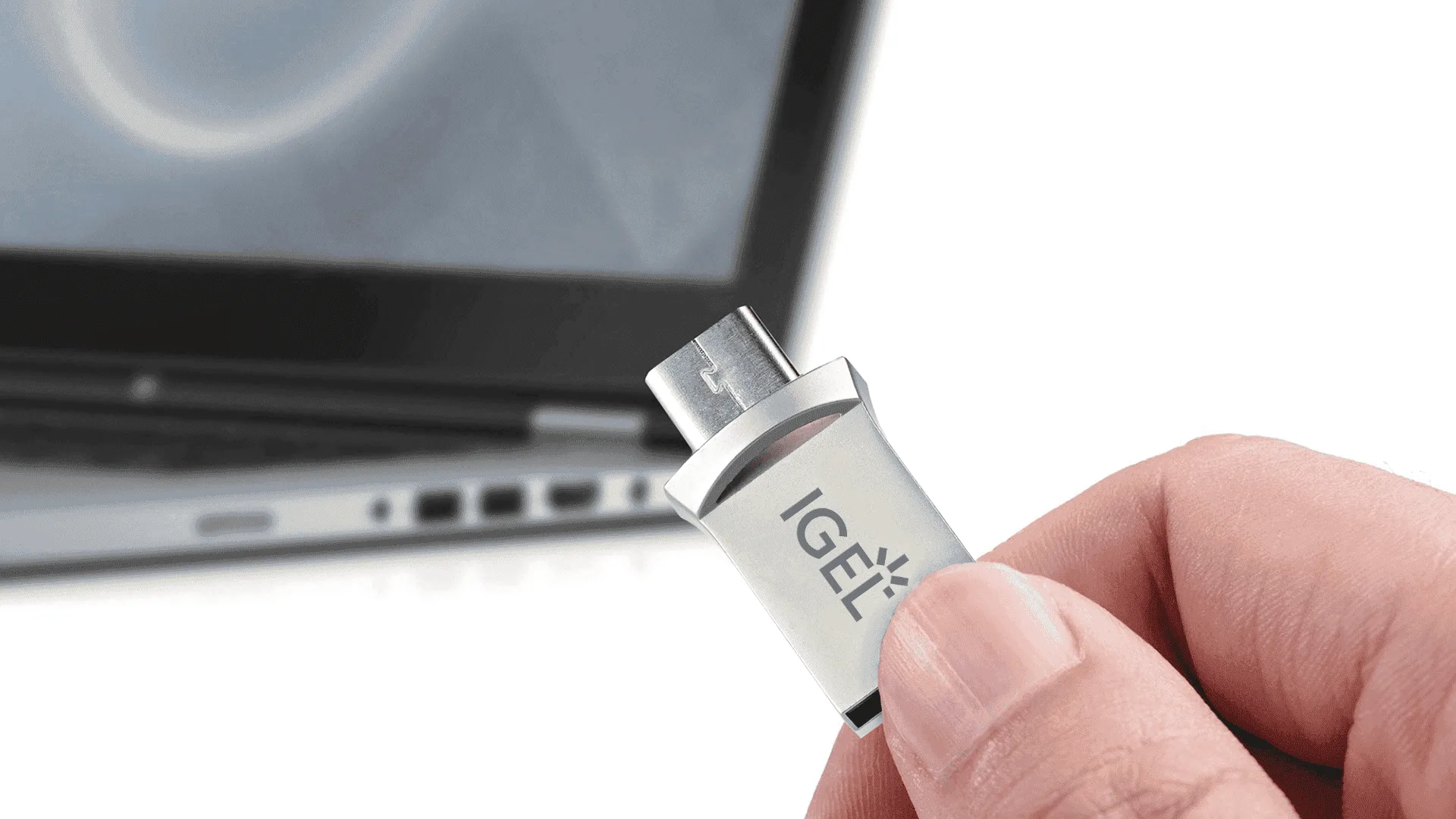
The IGEL UD Pocket allows IGEL OS to run directly from a USB device without replacing the operating system installed on the computer.

For this to work, the computer must support booting from USB storage and the BIOS or UEFI settings must allow it.

This guide explains which settings should be checked when an IGEL UD Pocket does not appear in the boot menu or does not start correctly.
Open the Boot Menu

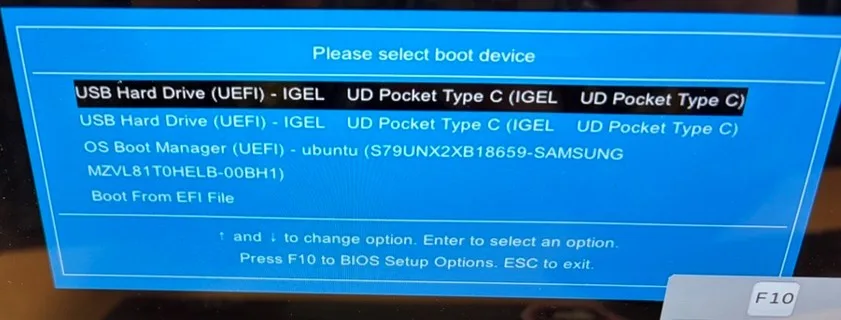
Restart or power on the computer with the IGEL UD Pocket connected.

During startup, open the computer’s boot menu.

The exact key depends on the hardware manufacturer. Common examples are:

  • HP: Esc or F9
  • Lenovo: F12
  • Dell: F12
  • Acer: F12
  • ASUS: Esc or F8

If the UD Pocket is detected correctly, an entry for the USB device should appear.

It may be displayed as the name of the USB device or as a UEFI USB entry.

Select the UD Pocket and press Enter.
UD Pocket Is Not Visible in the Boot Menu

If the UD Pocket does not appear, enter the BIOS/UEFI configuration.

Restart or power on the computer and press the BIOS/UEFI key immediately during startup.

The exact key depends on the hardware manufacturer. Common examples are:

HP: Esc, then F10
Lenovo: F1 or F2
Dell: F2
Acer: F2 or Delete
ASUS: F2 or Delete

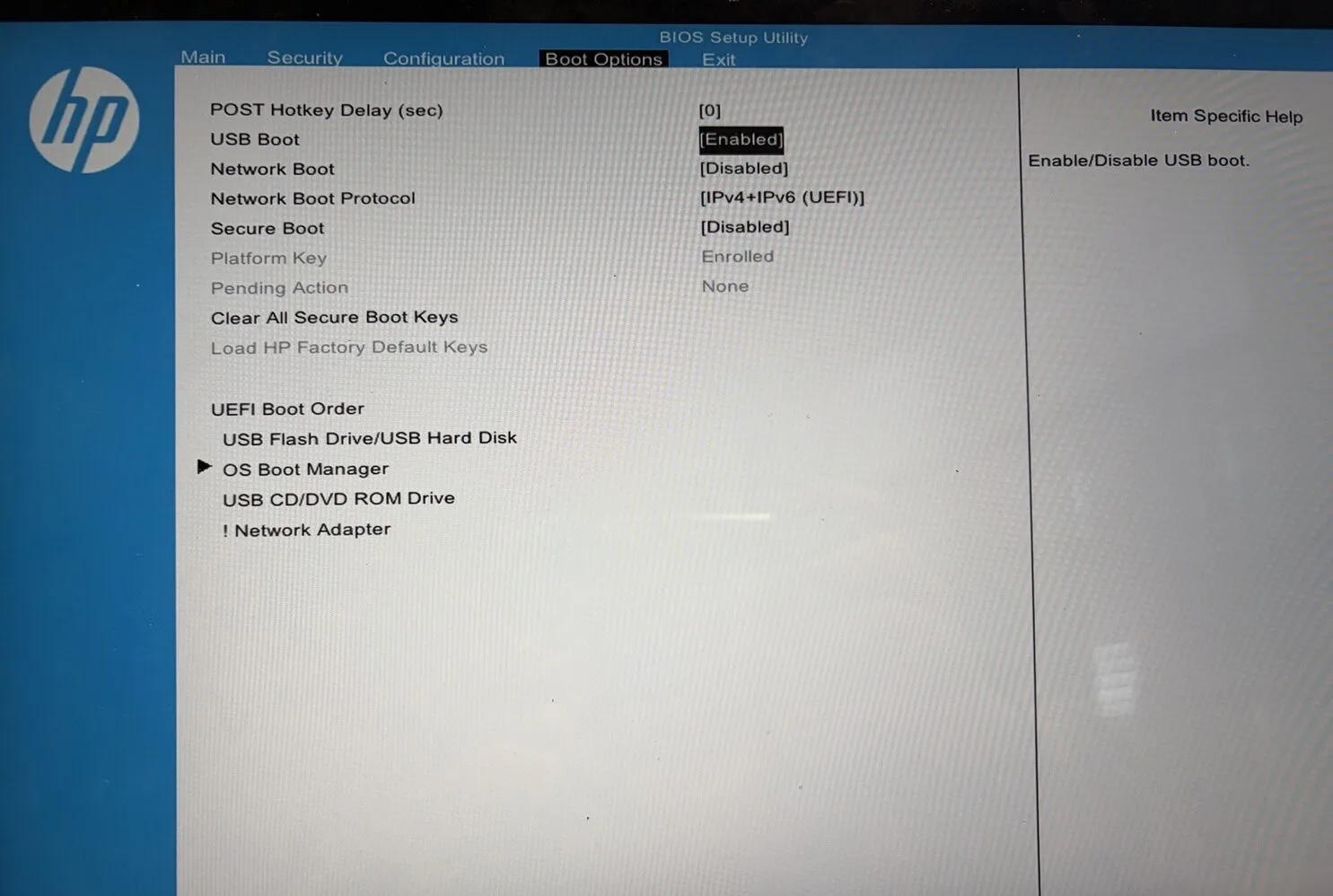
Enable USB Boot

Look for an option such as:

USB Boot
Boot from USB
External Device Boot
USB Storage Boot

Make sure the setting is Enabled.

Without USB boot support, the computer cannot start IGEL OS from the UD Pocket.
Check the Boot Mode

Modern computers normally use UEFI.

For IGEL OS 12, UEFI should normally be used when available.

Look for settings such as:

Boot Mode
UEFI Boot
Legacy Boot
CSM

For a modern IGEL OS 12 UD Pocket configuration, select UEFI.

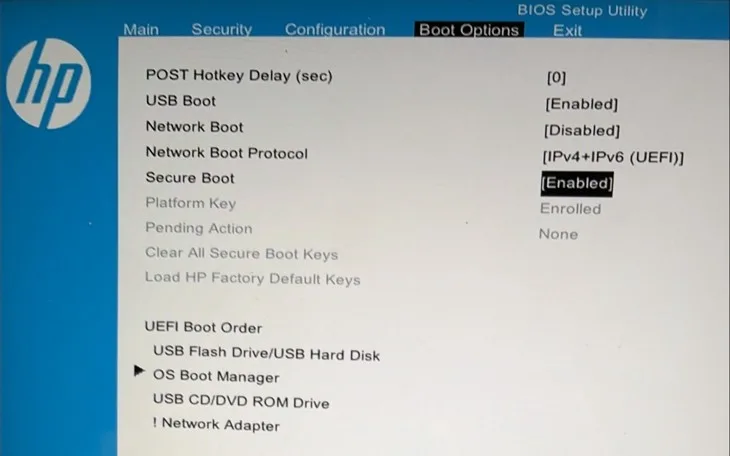
Check Secure Boot

IGEL OS supports UEFI Secure Boot, so Secure Boot does not normally need to be disabled.

However, if the UD Pocket does not boot, check whether the BIOS contains an option such as:

Allow Microsoft 3rd Party UEFI CA

If available, this option should be enabled when Secure Boot is used.
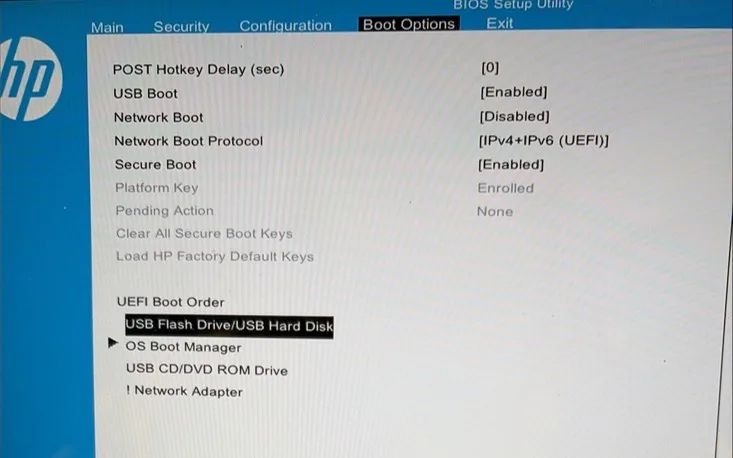
Check the Boot Order

If the computer should automatically boot from the UD Pocket whenever it is connected, check the boot order.

Look for:

Boot Order
Boot Priority
Startup Order

Place the USB device before the internal SSD or Windows Boot Manager.

For occasional use, changing the permanent boot order is usually unnecessary. The one-time boot menu can simply be used instead.
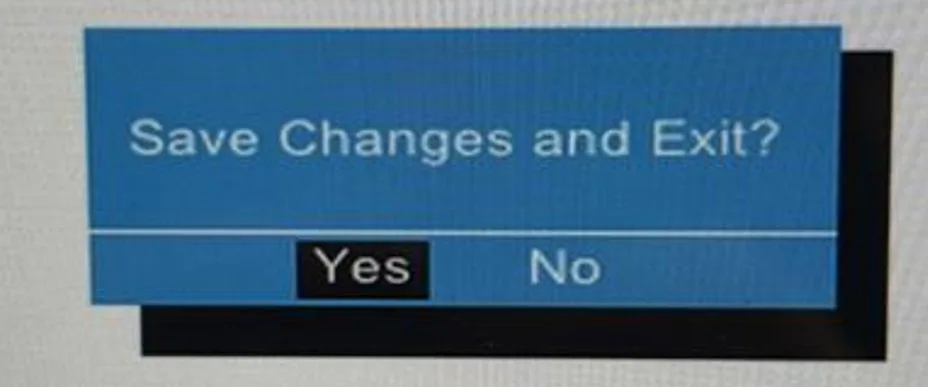
Save the BIOS Settings

After changing the required settings, save the configuration.

This option is usually called Save & Exit.
Restart the computer with the IGEL UD Pocket still connected.

Open the boot menu again and select the USB device.

Start IGEL OS

If the BIOS/UEFI configuration is correct, the computer should now boot from the UD Pocket and start IGEL OS directly from the USB device.

The operating system installed on the internal disk remains unchanged.

Next Steps

If you’ve read this far then chances are you are still having issues. Feel free to reach out to us. We’re happy to help out!
You might also like