

build 7bbbddf7 | content blog-content@c8490fa · 338 posts | profiles 20 · corpus 267 | 0 skipped | | format
apiVersion: soultec.ch/v1kind: Postmetadata: name: how-to-enroll-windows-server-2025-in-omnissa-workspace-one-uem locale: en labels: author: valentina-cicmak series: how-to capability/modern-workplace: 2.11 annotations: source: blog-content/posts/en/how-to-enroll-windows-server-2025-in-omnissa-workspace-one-uem.md route: /en/insights/how-to-enroll-windows-server-2025-in-omnissa-workspace-one-uem/ schema: /nerd/schema/posts.json markdown: /en/insights/how-to-enroll-windows-server-2025-in-omnissa-workspace-one-uem.mdspec: title: Enroll Windows Server 2025 in Omnissa Workspace ONE UEM date: 2026-07-07 author: valentina-cicmak locale: en summary: >- Windows Server is managed through Workspace ONE Intelligent Hub and does not use the standard Windows OMA-DM management channel. capabilities: [modern-workplace] series: how-to hero: >- /blog-assets/how-to-enroll-windows-server-2025-in-omnissa-workspace-one-uem/hero.webp legacySlug: how-to-enroll-windows-server-2025-in-omnissa-workspace-one-uem migrated: 2026-08-24 draft: false sections: - body: | Windows Server is managed through Workspace ONE Intelligent Hub and does not use the standard Windows OMA-DM management channel. Before starting, confirm that the Workspace ONE UEM tenant includes the required Windows Server Management or Server Essentials entitlement. ### Configure Workspace ONE UEM Create a dedicated child Organization Group for Windows Servers: Groups & Settings > Groups > OG Details > Add Child Organization Group Example: ![](/blog-assets/how-to-enroll-windows-server-2025-in-omnissa-workspace-one-uem/01.webp) Use the exact Group ID later for the LGNAME installation parameter: LGNAME=WINSRV Select the new Windows Servers Organization Group from the Organization Group selector at the top of the console before configuring the following settings. Add a dedicated directory enrollment account: Accounts > Users > Add > Add User Example: ![](/blog-assets/how-to-enroll-windows-server-2025-in-omnissa-workspace-one-uem/02.webp) Confirm that the account: • Is synchronized from Active Directory • Is active • Belongs to the Windows Servers Organization Group • Is allowed to enroll devices Configure the Windows Server management mode: Groups & Settings > All Settings > Devices & Users > General > Enrollment > Management Mode Select: • No OMA-DM Management • Intelligent Hub Managed Mode • All Windows devices in this Organization Group: Enabled Enable the last option only when the Organization Group contains Windows Servers exclusively. Otherwise, assign a Windows Server Smart Group. ![](/blog-assets/how-to-enroll-windows-server-2025-in-omnissa-workspace-one-uem/03.webp) Configure a fixed Organization Group: Groups & Settings > All Settings > Devices & Users > General > Shared Device > Grouping Select: • Group Assignment Mode: Fixed Organization Group ![](/blog-assets/how-to-enroll-windows-server-2025-in-omnissa-workspace-one-uem/04.webp) This ensures that the server is enrolled directly into the currently selected Windows Servers Organization Group. ### Test Connectivity Run the following commands from an elevated PowerShell window: ```powershell $DeviceServices = "ds1234.awmdm.com" Resolve-DnsName $DeviceServices Test-NetConnection -ComputerName $DeviceServices -Port 443 ``` The result should show: TcpTestSucceeded : True ### Install Intelligent Hub Replace the Device Services address, Group ID, and enrollment username with the values from your environment. ```powershell $ErrorActionPreference = "Stop" $HubUrl = "https://packages.omnissa.com/wsone/AirwatchAgent.msi" $MsiPath = "C:\Windows\Temp\AirwatchAgent.msi" $LogPath = "C:\Windows\Temp\WorkspaceONE_Hub_Enrollment.log" $Server = "ds1234.awmdm.com" $GroupId = "WINSRV" $Username = "[email protected]" Invoke-WebRequest -Uri $HubUrl -OutFile $MsiPath if (-not (Test-Path -LiteralPath $MsiPath)) { throw "Intelligent Hub MSI was not downloaded." } $SecurePassword = Read-Host "Enter the password for $Username" -AsSecureString $PasswordPointer = [Runtime.InteropServices.Marshal]::SecureStringToBSTR($SecurePassword) try { $Password = [Runtime.InteropServices.Marshal]::PtrToStringBSTR($PasswordPointer) $MsiArguments = @( "/i `"$MsiPath`"" "/qn" "/norestart" "/L*v `"$LogPath`"" "ENROLL=Y" "SERVER=$Server" "LGNAME=$GroupId" "USERNAME=$Username" "PASSWORD=`"$Password`"" "DEVICEOWNERSHIPTYPE=CD" "ASSIGNTOLOGGEDINUSER=N" ) -join " " $Process = Start-Process ` -FilePath "msiexec.exe" ` -ArgumentList $MsiArguments ` -Wait ` -PassThru Write-Host "MSI exit code: $($Process.ExitCode)" Write-Host "MSI log: $LogPath" } finally { if ($PasswordPointer -ne [IntPtr]::Zero) { [Runtime.InteropServices.Marshal]::ZeroFreeBSTR($PasswordPointer) } Remove-Variable Password -ErrorAction SilentlyContinue Remove-Variable SecurePassword -ErrorAction SilentlyContinue } ``` The following parameters define where and how the Windows Server is enrolled: • SERVER: The Workspace ONE UEM Device Services address. • LGNAME: The Group ID of the target Organization Group. • USERNAME: The dedicated account used to enroll the server. • DEVICEOWNERSHIPTYPE=CD: Registers the server as a corporate-dedicated device. • ASSIGNTOLOGGEDINUSER=N: Prevents the server from being assigned to the currently signed-in administrator and keeps it assigned to the enrollment account. For production deployments, protect the enrollment password with a secure deployment or secret-management solution. ### Verify the Enrollment Check whether the Hub services are running: ```powershell Get-Service -ErrorAction SilentlyContinue | Where-Object { $_.Name -match "Airwatch|Workspace" -or $_.DisplayName -match "Airwatch|Workspace ONE" } | Format-Table Name, DisplayName, Status -AutoSize ``` Expected services include: • AirwatchService • Workspace ONE Hub Health Monitoring Service Review the latest enrollment log: ```powershell $LogFolder = "C:\ProgramData\AirWatch\UnifiedAgent\Logs" $EnrollmentLog = Get-ChildItem -Path $LogFolder ` -Filter "DeviceEnrollment-*.log" ` -ErrorAction SilentlyContinue | Sort-Object LastWriteTime -Descending | Select-Object -First 1 if ($EnrollmentLog) { Get-Content -Path $EnrollmentLog.FullName -Tail 100 } else { Write-Host "No DeviceEnrollment log was found." } ``` In the UEM console, open: Devices > List View Search for the server hostname or enrollment username. The enrollment is successful when the server appears in UEM, Intelligent Hub remains installed, and the device shows a recent check-in. ### Troubleshooting Error 1011: Invalid User Credentials Check the username, password, directory synchronization, account status, and Organization Group assignment. Error 2025: ERR\_Server\_Enrollment\_Not\_Licensed The tenant is missing the required Windows Server entitlement or backend feature. Reinstalling Intelligent Hub will not resolve this error. Hub installs and then disappears: Check the DeviceEnrollment log. Intelligent Hub may automatically uninstall itself when Windows Server enrollment is not licensed. No Accounts key exists. Not a DM enrollment flow: This is expected because Windows Server uses Intelligent Hub Managed Mode instead of OMA-DM. - heading:
Next Steps

body: | If you've read this far then chances are you are still having issues. [Feel free to reach out to us](https://soultec.ch/contact-us/). We're happy to help out!status: corpus: 267 alsoLike: - {ref: posts/how-to-igel-ud-pocket-bios-uefi-settings, score: 1.00} - {ref: posts/how-to-fix-workspace-one-admin-assistant-parsing-failed-macos, score: 1.00} - {ref: solutions/microsoft/microsoft-teams, score: 0.85}
{ "apiVersion": "soultec.ch/v1", "kind": "Post", "metadata": { "name": "how-to-enroll-windows-server-2025-in-omnissa-workspace-one-uem", "locale": "en", "labels": { "author": "valentina-cicmak", "series": "how-to", "capability/modern-workplace": "2.11" }, "annotations": { "source": "blog-content/posts/en/how-to-enroll-windows-server-2025-in-omnissa-workspace-one-uem.md", "route": "/en/insights/how-to-enroll-windows-server-2025-in-omnissa-workspace-one-uem/", "schema": "/nerd/schema/posts.json", "markdown": "/en/insights/how-to-enroll-windows-server-2025-in-omnissa-workspace-one-uem.md" } }, "spec": { "title": "Enroll Windows Server 2025 in Omnissa Workspace ONE UEM", "date": "2026-07-07", "author": "valentina-cicmak", "locale": "en", "summary": "Windows Server is managed through Workspace ONE Intelligent Hub and does not use the standard Windows OMA-DM management channel.", "capabilities": [ "modern-workplace" ], "series": "how-to", "hero": "/blog-assets/how-to-enroll-windows-server-2025-in-omnissa-workspace-one-uem/hero.webp", "legacySlug": "how-to-enroll-windows-server-2025-in-omnissa-workspace-one-uem", "migrated": "2026-08-24", "draft": false }, "sections": [ { "body": "Windows Server is managed through Workspace ONE Intelligent Hub and does not use the standard Windows OMA-DM management channel. \nBefore starting, confirm that the Workspace ONE UEM tenant includes the required Windows Server Management or Server Essentials entitlement.\n\n### Configure Workspace ONE UEM\n\nCreate a dedicated child Organization Group for Windows Servers:\n\nGroups & Settings > Groups > OG Details > Add Child Organization Group\n\nExample:\n\n![](/blog-assets/how-to-enroll-windows-server-2025-in-omnissa-workspace-one-uem/01.webp)\n\nUse the exact Group ID later for the LGNAME installation parameter: LGNAME=WINSRV \nSelect the new Windows Servers Organization Group from the Organization Group selector at the top of the console before configuring the following settings. \nAdd a dedicated directory enrollment account:\n\nAccounts > Users > Add > Add User\n\nExample:\n\n![](/blog-assets/how-to-enroll-windows-server-2025-in-omnissa-workspace-one-uem/02.webp)\n\nConfirm that the account:\n\n• Is synchronized from Active Directory \n• Is active \n• Belongs to the Windows Servers Organization Group \n• Is allowed to enroll devices\n\nConfigure the Windows Server management mode:\n\nGroups & Settings > All Settings > Devices & Users > General > Enrollment > Management Mode\n\nSelect:\n\n• No OMA-DM Management \n• Intelligent Hub Managed Mode \n• All Windows devices in this Organization Group: Enabled\n\nEnable the last option only when the Organization Group contains Windows Servers exclusively. Otherwise, assign a Windows Server Smart Group.\n\n![](/blog-assets/how-to-enroll-windows-server-2025-in-omnissa-workspace-one-uem/03.webp)\n\nConfigure a fixed Organization Group:\n\nGroups & Settings > All Settings > Devices & Users > General > Shared Device > Grouping\n\nSelect:\n\n• Group Assignment Mode: Fixed Organization Group\n\n![](/blog-assets/how-to-enroll-windows-server-2025-in-omnissa-workspace-one-uem/04.webp)\n\nThis ensures that the server is enrolled directly into the currently selected Windows Servers Organization Group.\n\n### Test Connectivity\n\nRun the following commands from an elevated PowerShell window:\n\n```powershell\n$DeviceServices = \"ds1234.awmdm.com\"\nResolve-DnsName $DeviceServices\nTest-NetConnection -ComputerName $DeviceServices -Port 443\n```\n\nThe result should show: \nTcpTestSucceeded : True\n\n### Install Intelligent Hub\n\nReplace the Device Services address, Group ID, and enrollment username with the values from your environment.\n\n```powershell\n$ErrorActionPreference = \"Stop\"\n$HubUrl = \"https://packages.omnissa.com/wsone/AirwatchAgent.msi\"\n$MsiPath = \"C:\\Windows\\Temp\\AirwatchAgent.msi\"\n$LogPath = \"C:\\Windows\\Temp\\WorkspaceONE_Hub_Enrollment.log\"\n$Server = \"ds1234.awmdm.com\"\n$GroupId = \"WINSRV\"\n$Username = \"[email protected]\"\nInvoke-WebRequest -Uri $HubUrl -OutFile $MsiPath\nif (-not (Test-Path -LiteralPath $MsiPath)) {\nthrow \"Intelligent Hub MSI was not downloaded.\"\n}\n$SecurePassword = Read-Host \"Enter the password for $Username\" -AsSecureString\n$PasswordPointer = [Runtime.InteropServices.Marshal]::SecureStringToBSTR($SecurePassword)\ntry {\n$Password = [Runtime.InteropServices.Marshal]::PtrToStringBSTR($PasswordPointer)\n$MsiArguments = @(\n\"/i `\"$MsiPath`\"\"\n\"/qn\"\n\"/norestart\"\n\"/L*v `\"$LogPath`\"\"\n\"ENROLL=Y\"\n\"SERVER=$Server\"\n\"LGNAME=$GroupId\"\n\"USERNAME=$Username\"\n\"PASSWORD=`\"$Password`\"\"\n\"DEVICEOWNERSHIPTYPE=CD\"\n\"ASSIGNTOLOGGEDINUSER=N\"\n) -join \" \"\n\n$Process = Start-Process `\n-FilePath \"msiexec.exe\" `\n-ArgumentList $MsiArguments `\n-Wait `\n-PassThru\n\nWrite-Host \"MSI exit code: $($Process.ExitCode)\"\nWrite-Host \"MSI log: $LogPath\"\n}\nfinally {\nif ($PasswordPointer -ne [IntPtr]::Zero) {\n[Runtime.InteropServices.Marshal]::ZeroFreeBSTR($PasswordPointer)\n}\nRemove-Variable Password -ErrorAction SilentlyContinue\nRemove-Variable SecurePassword -ErrorAction SilentlyContinue\n}\n```\n\nThe following parameters define where and how the Windows Server is enrolled:\n\n• SERVER: The Workspace ONE UEM Device Services address. \n• LGNAME: The Group ID of the target Organization Group. \n• USERNAME: The dedicated account used to enroll the server. \n• DEVICEOWNERSHIPTYPE=CD: Registers the server as a corporate-dedicated device. \n• ASSIGNTOLOGGEDINUSER=N: Prevents the server from being assigned to the currently signed-in administrator and keeps it assigned to the enrollment account.\n\nFor production deployments, protect the enrollment password with a secure deployment or secret-management solution.\n\n### Verify the Enrollment\n\nCheck whether the Hub services are running:\n\n```powershell\nGet-Service -ErrorAction SilentlyContinue |\nWhere-Object {\n$_.Name -match \"Airwatch|Workspace\" -or\n$_.DisplayName -match \"Airwatch|Workspace ONE\"\n} |\nFormat-Table Name, DisplayName, Status -AutoSize\n```\n\nExpected services include: \n• AirwatchService \n• Workspace ONE Hub Health Monitoring Service\n\nReview the latest enrollment log:\n\n```powershell\n$LogFolder = \"C:\\ProgramData\\AirWatch\\UnifiedAgent\\Logs\"\n$EnrollmentLog = Get-ChildItem -Path $LogFolder `\n-Filter \"DeviceEnrollment-*.log\" `\n-ErrorAction SilentlyContinue |\nSort-Object LastWriteTime -Descending |\nSelect-Object -First 1\nif ($EnrollmentLog) {\nGet-Content -Path $EnrollmentLog.FullName -Tail 100\n}\nelse {\nWrite-Host \"No DeviceEnrollment log was found.\"\n}\n```\n\nIn the UEM console, open:\n\nDevices > List View\n\nSearch for the server hostname or enrollment username. \nThe enrollment is successful when the server appears in UEM, Intelligent Hub remains installed, and the device shows a recent check-in.\n\n### Troubleshooting\n\nError 1011: \nInvalid User Credentials \nCheck the username, password, directory synchronization, account status, and Organization Group assignment.\n\nError 2025: \nERR\\_Server\\_Enrollment\\_Not\\_Licensed \nThe tenant is missing the required Windows Server entitlement or backend feature. Reinstalling Intelligent Hub will not resolve this error.\n\nHub installs and then disappears: \nCheck the DeviceEnrollment log. Intelligent Hub may automatically uninstall itself when Windows Server enrollment is not licensed.\n\nNo Accounts key exists. Not a DM enrollment flow: \nThis is expected because Windows Server uses Intelligent Hub Managed Mode instead of OMA-DM." }, { "heading": "

Next Steps

",
"body": "If you've read this far then chances are you are still having issues. [Feel free to reach out to us](https://soultec.ch/contact-us/). We're happy to help out!" } ], "status": { "corpus": 267, "alsoLike": [ { "ref": "posts/how-to-igel-ud-pocket-bios-uefi-settings", "score": "1.00" }, { "ref": "posts/how-to-fix-workspace-one-admin-assistant-parsing-failed-macos", "score": "1.00" }, { "ref": "solutions/microsoft/microsoft-teams", "score": "0.85" } ] }}
apiVersion = "soultec.ch/v1"kind = "Post"[metadata]name = "how-to-enroll-windows-server-2025-in-omnissa-workspace-one-uem"locale = "en"[metadata.labels]author = "valentina-cicmak"series = "how-to""capability/modern-workplace" = "2.11"[metadata.annotations]source = "blog-content/posts/en/how-to-enroll-windows-server-2025-in-omnissa-workspace-one-uem.md"route = "/en/insights/how-to-enroll-windows-server-2025-in-omnissa-workspace-one-uem/"schema = "/nerd/schema/posts.json"markdown = "/en/insights/how-to-enroll-windows-server-2025-in-omnissa-workspace-one-uem.md"[spec]title = "Enroll Windows Server 2025 in Omnissa Workspace ONE UEM"date = 2026-07-07author = "valentina-cicmak"locale = "en"summary = "Windows Server is managed through Workspace ONE Intelligent Hub and does not use the standard Windows OMA-DM management channel."capabilities = ["modern-workplace"]series = "how-to"hero = "/blog-assets/how-to-enroll-windows-server-2025-in-omnissa-workspace-one-uem/hero.webp"legacySlug = "how-to-enroll-windows-server-2025-in-omnissa-workspace-one-uem"migrated = 2026-08-24draft = false[[sections]]body = '''Windows Server is managed through Workspace ONE Intelligent Hub and does not use the standard Windows OMA-DM management channel. Before starting, confirm that the Workspace ONE UEM tenant includes the required Windows Server Management or Server Essentials entitlement.### Configure Workspace ONE UEMCreate a dedicated child Organization Group for Windows Servers:Groups & Settings > Groups > OG Details > Add Child Organization GroupExample:![](/blog-assets/how-to-enroll-windows-server-2025-in-omnissa-workspace-one-uem/01.webp)Use the exact Group ID later for the LGNAME installation parameter: LGNAME=WINSRV Select the new Windows Servers Organization Group from the Organization Group selector at the top of the console before configuring the following settings. Add a dedicated directory enrollment account:Accounts > Users > Add > Add UserExample:![](/blog-assets/how-to-enroll-windows-server-2025-in-omnissa-workspace-one-uem/02.webp)Confirm that the account:• Is synchronized from Active Directory • Is active • Belongs to the Windows Servers Organization Group • Is allowed to enroll devicesConfigure the Windows Server management mode:Groups & Settings > All Settings > Devices & Users > General > Enrollment > Management ModeSelect:• No OMA-DM Management • Intelligent Hub Managed Mode • All Windows devices in this Organization Group: EnabledEnable the last option only when the Organization Group contains Windows Servers exclusively. Otherwise, assign a Windows Server Smart Group.![](/blog-assets/how-to-enroll-windows-server-2025-in-omnissa-workspace-one-uem/03.webp)Configure a fixed Organization Group:Groups & Settings > All Settings > Devices & Users > General > Shared Device > GroupingSelect:• Group Assignment Mode: Fixed Organization Group![](/blog-assets/how-to-enroll-windows-server-2025-in-omnissa-workspace-one-uem/04.webp)This ensures that the server is enrolled directly into the currently selected Windows Servers Organization Group.### Test ConnectivityRun the following commands from an elevated PowerShell window:```powershell$DeviceServices = "ds1234.awmdm.com"Resolve-DnsName $DeviceServicesTest-NetConnection -ComputerName $DeviceServices -Port 443```The result should show: TcpTestSucceeded : True### Install Intelligent HubReplace the Device Services address, Group ID, and enrollment username with the values from your environment.```powershell$ErrorActionPreference = "Stop"$HubUrl = "https://packages.omnissa.com/wsone/AirwatchAgent.msi"$MsiPath = "C:\Windows\Temp\AirwatchAgent.msi"$LogPath = "C:\Windows\Temp\WorkspaceONE_Hub_Enrollment.log"$Server = "ds1234.awmdm.com"$GroupId = "WINSRV"$Username = "[email protected]"Invoke-WebRequest -Uri $HubUrl -OutFile $MsiPathif (-not (Test-Path -LiteralPath $MsiPath)) {throw "Intelligent Hub MSI was not downloaded."}$SecurePassword = Read-Host "Enter the password for $Username" -AsSecureString$PasswordPointer = [Runtime.InteropServices.Marshal]::SecureStringToBSTR($SecurePassword)try {$Password = [Runtime.InteropServices.Marshal]::PtrToStringBSTR($PasswordPointer)$MsiArguments = @("/i `"$MsiPath`"""/qn""/norestart""/L*v `"$LogPath`"""ENROLL=Y""SERVER=$Server""LGNAME=$GroupId""USERNAME=$Username""PASSWORD=`"$Password`"""DEVICEOWNERSHIPTYPE=CD""ASSIGNTOLOGGEDINUSER=N") -join " "$Process = Start-Process `-FilePath "msiexec.exe" `-ArgumentList $MsiArguments `-Wait `-PassThruWrite-Host "MSI exit code: $($Process.ExitCode)"Write-Host "MSI log: $LogPath"}finally {if ($PasswordPointer -ne [IntPtr]::Zero) {[Runtime.InteropServices.Marshal]::ZeroFreeBSTR($PasswordPointer)}Remove-Variable Password -ErrorAction SilentlyContinueRemove-Variable SecurePassword -ErrorAction SilentlyContinue}```The following parameters define where and how the Windows Server is enrolled:• SERVER: The Workspace ONE UEM Device Services address. • LGNAME: The Group ID of the target Organization Group. • USERNAME: The dedicated account used to enroll the server. • DEVICEOWNERSHIPTYPE=CD: Registers the server as a corporate-dedicated device. • ASSIGNTOLOGGEDINUSER=N: Prevents the server from being assigned to the currently signed-in administrator and keeps it assigned to the enrollment account.For production deployments, protect the enrollment password with a secure deployment or secret-management solution.### Verify the EnrollmentCheck whether the Hub services are running:```powershellGet-Service -ErrorAction SilentlyContinue |Where-Object {$_.Name -match "Airwatch|Workspace" -or$_.DisplayName -match "Airwatch|Workspace ONE"} |Format-Table Name, DisplayName, Status -AutoSize```Expected services include: • AirwatchService • Workspace ONE Hub Health Monitoring ServiceReview the latest enrollment log:```powershell$LogFolder = "C:\ProgramData\AirWatch\UnifiedAgent\Logs"$EnrollmentLog = Get-ChildItem -Path $LogFolder `-Filter "DeviceEnrollment-*.log" `-ErrorAction SilentlyContinue |Sort-Object LastWriteTime -Descending |Select-Object -First 1if ($EnrollmentLog) {Get-Content -Path $EnrollmentLog.FullName -Tail 100}else {Write-Host "No DeviceEnrollment log was found."}```In the UEM console, open:Devices > List ViewSearch for the server hostname or enrollment username. The enrollment is successful when the server appears in UEM, Intelligent Hub remains installed, and the device shows a recent check-in.### TroubleshootingError 1011: Invalid User Credentials Check the username, password, directory synchronization, account status, and Organization Group assignment.Error 2025: ERR\_Server\_Enrollment\_Not\_Licensed The tenant is missing the required Windows Server entitlement or backend feature. Reinstalling Intelligent Hub will not resolve this error.Hub installs and then disappears: Check the DeviceEnrollment log. Intelligent Hub may automatically uninstall itself when Windows Server enrollment is not licensed.No Accounts key exists. Not a DM enrollment flow: This is expected because Windows Server uses Intelligent Hub Managed Mode instead of OMA-DM.'''[[sections]]heading = "

Next Steps

"
body = "If you've read this far then chances are you are still having issues. [Feel free to reach out to us](https://soultec.ch/contact-us/). We're happy to help out!"[status]corpus = 267[[status.alsoLike]]ref = "posts/how-to-igel-ud-pocket-bios-uefi-settings"score = "1.00"[[status.alsoLike]]ref = "posts/how-to-fix-workspace-one-admin-assistant-parsing-failed-macos"score = "1.00"[[status.alsoLike]]ref = "solutions/microsoft/microsoft-teams"score = "0.85"
<?xml version="1.0" encoding="UTF-8"?><manifest kind="Post"> <apiVersion>soultec.ch/v1</apiVersion> <metadata> <name>how-to-enroll-windows-server-2025-in-omnissa-workspace-one-uem</name> <locale>en</locale> <labels> <author>valentina-cicmak</author> <series>how-to</series> <entry key="capability/modern-workplace">2.11</entry> </labels> <annotations> <source>blog-content/posts/en/how-to-enroll-windows-server-2025-in-omnissa-workspace-one-uem.md</source> <route>/en/insights/how-to-enroll-windows-server-2025-in-omnissa-workspace-one-uem/</route> <schema>/nerd/schema/posts.json</schema> <markdown>/en/insights/how-to-enroll-windows-server-2025-in-omnissa-workspace-one-uem.md</markdown> </annotations> </metadata> <spec> <title>Enroll Windows Server 2025 in Omnissa Workspace ONE UEM</title> <date>2026-07-07</date> <author>valentina-cicmak</author> <locale>en</locale> <summary>Windows Server is managed through Workspace ONE Intelligent Hub and does not use the standard Windows OMA-DM management channel.</summary> <capabilities> <item>modern-workplace</item> </capabilities> <series>how-to</series> <hero>/blog-assets/how-to-enroll-windows-server-2025-in-omnissa-workspace-one-uem/hero.webp</hero> <legacySlug>how-to-enroll-windows-server-2025-in-omnissa-workspace-one-uem</legacySlug> <migrated>2026-08-24</migrated> <draft>false</draft> </spec> <sections> <section> <body>Windows Server is managed through Workspace ONE Intelligent Hub and does not use the standard Windows OMA-DM management channel. Before starting, confirm that the Workspace ONE UEM tenant includes the required Windows Server Management or Server Essentials entitlement.### Configure Workspace ONE UEMCreate a dedicated child Organization Group for Windows Servers:Groups &amp; Settings &gt; Groups &gt; OG Details &gt; Add Child Organization GroupExample:![](/blog-assets/how-to-enroll-windows-server-2025-in-omnissa-workspace-one-uem/01.webp)Use the exact Group ID later for the LGNAME installation parameter: LGNAME=WINSRV Select the new Windows Servers Organization Group from the Organization Group selector at the top of the console before configuring the following settings. Add a dedicated directory enrollment account:Accounts &gt; Users &gt; Add &gt; Add UserExample:![](/blog-assets/how-to-enroll-windows-server-2025-in-omnissa-workspace-one-uem/02.webp)Confirm that the account:• Is synchronized from Active Directory • Is active • Belongs to the Windows Servers Organization Group • Is allowed to enroll devicesConfigure the Windows Server management mode:Groups &amp; Settings &gt; All Settings &gt; Devices &amp; Users &gt; General &gt; Enrollment &gt; Management ModeSelect:• No OMA-DM Management • Intelligent Hub Managed Mode • All Windows devices in this Organization Group: EnabledEnable the last option only when the Organization Group contains Windows Servers exclusively. Otherwise, assign a Windows Server Smart Group.![](/blog-assets/how-to-enroll-windows-server-2025-in-omnissa-workspace-one-uem/03.webp)Configure a fixed Organization Group:Groups &amp; Settings &gt; All Settings &gt; Devices &amp; Users &gt; General &gt; Shared Device &gt; GroupingSelect:• Group Assignment Mode: Fixed Organization Group![](/blog-assets/how-to-enroll-windows-server-2025-in-omnissa-workspace-one-uem/04.webp)This ensures that the server is enrolled directly into the currently selected Windows Servers Organization Group.### Test ConnectivityRun the following commands from an elevated PowerShell window:```powershell$DeviceServices = "ds1234.awmdm.com"Resolve-DnsName $DeviceServicesTest-NetConnection -ComputerName $DeviceServices -Port 443```The result should show: TcpTestSucceeded : True### Install Intelligent HubReplace the Device Services address, Group ID, and enrollment username with the values from your environment.```powershell$ErrorActionPreference = "Stop"$HubUrl = "https://packages.omnissa.com/wsone/AirwatchAgent.msi"$MsiPath = "C:\Windows\Temp\AirwatchAgent.msi"$LogPath = "C:\Windows\Temp\WorkspaceONE_Hub_Enrollment.log"$Server = "ds1234.awmdm.com"$GroupId = "WINSRV"$Username = "[email protected]"Invoke-WebRequest -Uri $HubUrl -OutFile $MsiPathif (-not (Test-Path -LiteralPath $MsiPath)) {throw "Intelligent Hub MSI was not downloaded."}$SecurePassword = Read-Host "Enter the password for $Username" -AsSecureString$PasswordPointer = [Runtime.InteropServices.Marshal]::SecureStringToBSTR($SecurePassword)try {$Password = [Runtime.InteropServices.Marshal]::PtrToStringBSTR($PasswordPointer)$MsiArguments = @("/i `"$MsiPath`"""/qn""/norestart""/L*v `"$LogPath`"""ENROLL=Y""SERVER=$Server""LGNAME=$GroupId""USERNAME=$Username""PASSWORD=`"$Password`"""DEVICEOWNERSHIPTYPE=CD""ASSIGNTOLOGGEDINUSER=N") -join " "$Process = Start-Process `-FilePath "msiexec.exe" `-ArgumentList $MsiArguments `-Wait `-PassThruWrite-Host "MSI exit code: $($Process.ExitCode)"Write-Host "MSI log: $LogPath"}finally {if ($PasswordPointer -ne [IntPtr]::Zero) {[Runtime.InteropServices.Marshal]::ZeroFreeBSTR($PasswordPointer)}Remove-Variable Password -ErrorAction SilentlyContinueRemove-Variable SecurePassword -ErrorAction SilentlyContinue}```The following parameters define where and how the Windows Server is enrolled:• SERVER: The Workspace ONE UEM Device Services address. • LGNAME: The Group ID of the target Organization Group. • USERNAME: The dedicated account used to enroll the server. • DEVICEOWNERSHIPTYPE=CD: Registers the server as a corporate-dedicated device. • ASSIGNTOLOGGEDINUSER=N: Prevents the server from being assigned to the currently signed-in administrator and keeps it assigned to the enrollment account.For production deployments, protect the enrollment password with a secure deployment or secret-management solution.### Verify the EnrollmentCheck whether the Hub services are running:```powershellGet-Service -ErrorAction SilentlyContinue |Where-Object {$_.Name -match "Airwatch|Workspace" -or$_.DisplayName -match "Airwatch|Workspace ONE"} |Format-Table Name, DisplayName, Status -AutoSize```Expected services include: • AirwatchService • Workspace ONE Hub Health Monitoring ServiceReview the latest enrollment log:```powershell$LogFolder = "C:\ProgramData\AirWatch\UnifiedAgent\Logs"$EnrollmentLog = Get-ChildItem -Path $LogFolder `-Filter "DeviceEnrollment-*.log" `-ErrorAction SilentlyContinue |Sort-Object LastWriteTime -Descending |Select-Object -First 1if ($EnrollmentLog) {Get-Content -Path $EnrollmentLog.FullName -Tail 100}else {Write-Host "No DeviceEnrollment log was found."}```In the UEM console, open:Devices &gt; List ViewSearch for the server hostname or enrollment username. The enrollment is successful when the server appears in UEM, Intelligent Hub remains installed, and the device shows a recent check-in.### TroubleshootingError 1011: Invalid User Credentials Check the username, password, directory synchronization, account status, and Organization Group assignment.Error 2025: ERR\_Server\_Enrollment\_Not\_Licensed The tenant is missing the required Windows Server entitlement or backend feature. Reinstalling Intelligent Hub will not resolve this error.Hub installs and then disappears: Check the DeviceEnrollment log. Intelligent Hub may automatically uninstall itself when Windows Server enrollment is not licensed.No Accounts key exists. Not a DM enrollment flow: This is expected because Windows Server uses Intelligent Hub Managed Mode instead of OMA-DM. </body> </section> <section> <heading>

Next Steps

</heading>
<body>If you've read this far then chances are you are still having issues. [Feel free to reach out to us](https://soultec.ch/contact-us/). We're happy to help out!</body> </section> </sections> <status> <corpus>267</corpus> <alsoLike> <item> <ref>posts/how-to-igel-ud-pocket-bios-uefi-settings</ref> <score>1.00</score> </item> <item> <ref>posts/how-to-fix-workspace-one-admin-assistant-parsing-failed-macos</ref> <score>1.00</score> </item> <item> <ref>solutions/microsoft/microsoft-teams</ref> <score>0.85</score> </item> </alsoLike> </status></manifest>
How-To · 2026-07-07

Enroll Windows Server 2025 in Omnissa Workspace ONE UEM

Windows Server is managed through Workspace ONE Intelligent Hub and does not use the standard Windows OMA-DM management channel.

2026-07-07Date
Valentina CicmakAuthor
4Min read
Topics Modern Workplace 2.11

Windows Server is managed through Workspace ONE Intelligent Hub and does not use the standard Windows OMA-DM management channel.
Before starting, confirm that the Workspace ONE UEM tenant includes the required Windows Server Management or Server Essentials entitlement.

Configure Workspace ONE UEM

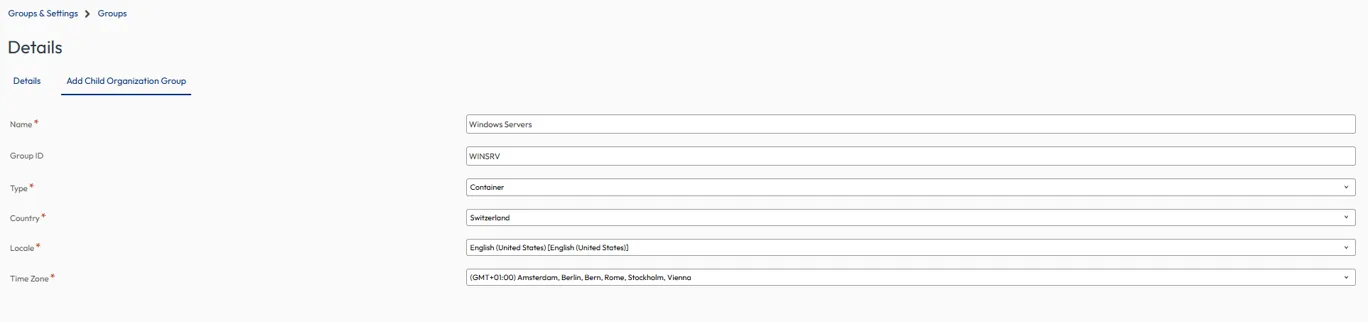
Create a dedicated child Organization Group for Windows Servers:

Groups & Settings > Groups > OG Details > Add Child Organization Group

Example:

Use the exact Group ID later for the LGNAME installation parameter: LGNAME=WINSRV
Select the new Windows Servers Organization Group from the Organization Group selector at the top of the console before configuring the following settings.
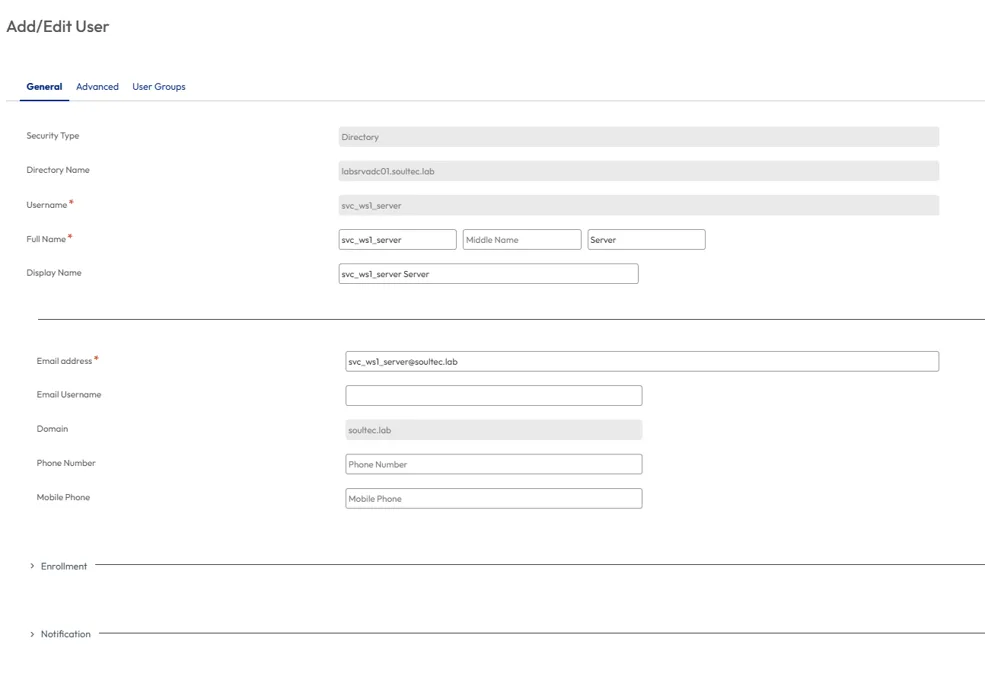
Add a dedicated directory enrollment account:

Accounts > Users > Add > Add User

Example:

Confirm that the account:

• Is synchronized from Active Directory
• Is active
• Belongs to the Windows Servers Organization Group
• Is allowed to enroll devices

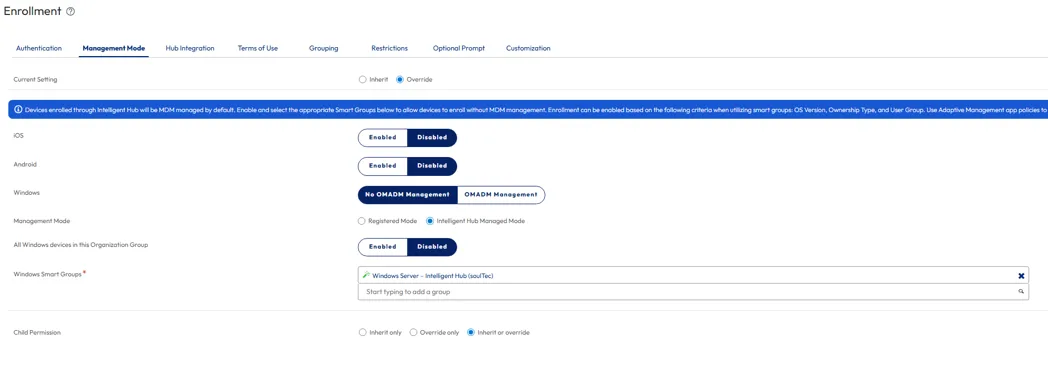
Configure the Windows Server management mode:

Groups & Settings > All Settings > Devices & Users > General > Enrollment > Management Mode

Select:

• No OMA-DM Management
• Intelligent Hub Managed Mode
• All Windows devices in this Organization Group: Enabled

Enable the last option only when the Organization Group contains Windows Servers exclusively. Otherwise, assign a Windows Server Smart Group.
Configure a fixed Organization Group:

Groups & Settings > All Settings > Devices & Users > General > Shared Device > Grouping

Select:

• Group Assignment Mode: Fixed Organization Group
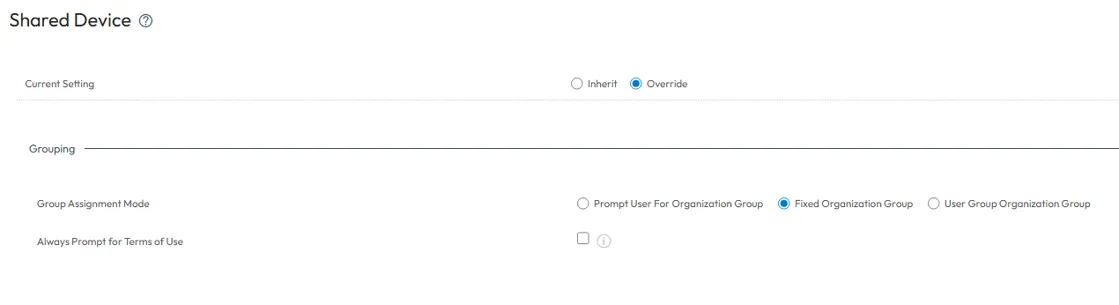
This ensures that the server is enrolled directly into the currently selected Windows Servers Organization Group.

Test Connectivity

Run the following commands from an elevated PowerShell window:

$DeviceServices = "ds1234.awmdm.com"
Resolve-DnsName $DeviceServices
Test-NetConnection -ComputerName $DeviceServices -Port 443

The result should show:
TcpTestSucceeded : True

Install Intelligent Hub

Replace the Device Services address, Group ID, and enrollment username with the values from your environment.

$ErrorActionPreference = "Stop"
$HubUrl = "https://packages.omnissa.com/wsone/AirwatchAgent.msi"
$MsiPath = "C:\Windows\Temp\AirwatchAgent.msi"
$LogPath = "C:\Windows\Temp\WorkspaceONE_Hub_Enrollment.log"
$Server = "ds1234.awmdm.com"
$GroupId = "WINSRV"
$Username = "[email protected]"
Invoke-WebRequest -Uri $HubUrl -OutFile $MsiPath
if (-not (Test-Path -LiteralPath $MsiPath)) {
throw "Intelligent Hub MSI was not downloaded."
}
$SecurePassword = Read-Host "Enter the password for $Username" -AsSecureString
$PasswordPointer = [Runtime.InteropServices.Marshal]::SecureStringToBSTR($SecurePassword)
try {
$Password = [Runtime.InteropServices.Marshal]::PtrToStringBSTR($PasswordPointer)
$MsiArguments = @(
"/i `"$MsiPath`""
"/qn"
"/norestart"
"/L*v `"$LogPath`""
"ENROLL=Y"
"SERVER=$Server"
"LGNAME=$GroupId"
"USERNAME=$Username"
"PASSWORD=`"$Password`""
"DEVICEOWNERSHIPTYPE=CD"
"ASSIGNTOLOGGEDINUSER=N"
) -join " "

$Process = Start-Process `
-FilePath "msiexec.exe" `
-ArgumentList $MsiArguments `
-Wait `
-PassThru

Write-Host "MSI exit code: $($Process.ExitCode)"
Write-Host "MSI log: $LogPath"
}
finally {
if ($PasswordPointer -ne [IntPtr]::Zero) {
[Runtime.InteropServices.Marshal]::ZeroFreeBSTR($PasswordPointer)
}
Remove-Variable Password -ErrorAction SilentlyContinue
Remove-Variable SecurePassword -ErrorAction SilentlyContinue
}

The following parameters define where and how the Windows Server is enrolled:

• SERVER: The Workspace ONE UEM Device Services address.
• LGNAME: The Group ID of the target Organization Group.
• USERNAME: The dedicated account used to enroll the server.
• DEVICEOWNERSHIPTYPE=CD: Registers the server as a corporate-dedicated device.
• ASSIGNTOLOGGEDINUSER=N: Prevents the server from being assigned to the currently signed-in administrator and keeps it assigned to the enrollment account.

For production deployments, protect the enrollment password with a secure deployment or secret-management solution.

Verify the Enrollment

Check whether the Hub services are running:

Get-Service -ErrorAction SilentlyContinue |
Where-Object {
$_.Name -match "Airwatch|Workspace" -or
$_.DisplayName -match "Airwatch|Workspace ONE"
} |
Format-Table Name, DisplayName, Status -AutoSize

Expected services include:
• AirwatchService
• Workspace ONE Hub Health Monitoring Service

Review the latest enrollment log:

$LogFolder = "C:\ProgramData\AirWatch\UnifiedAgent\Logs"
$EnrollmentLog = Get-ChildItem -Path $LogFolder `
-Filter "DeviceEnrollment-*.log" `
-ErrorAction SilentlyContinue |
Sort-Object LastWriteTime -Descending |
Select-Object -First 1
if ($EnrollmentLog) {
Get-Content -Path $EnrollmentLog.FullName -Tail 100
}
else {
Write-Host "No DeviceEnrollment log was found."
}

In the UEM console, open:

Devices > List View

Search for the server hostname or enrollment username.
The enrollment is successful when the server appears in UEM, Intelligent Hub remains installed, and the device shows a recent check-in.

Troubleshooting

Error 1011:
Invalid User Credentials
Check the username, password, directory synchronization, account status, and Organization Group assignment.

Error 2025:
ERR_Server_Enrollment_Not_Licensed
The tenant is missing the required Windows Server entitlement or backend feature. Reinstalling Intelligent Hub will not resolve this error.

Hub installs and then disappears:
Check the DeviceEnrollment log. Intelligent Hub may automatically uninstall itself when Windows Server enrollment is not licensed.

No Accounts key exists. Not a DM enrollment flow:
This is expected because Windows Server uses Intelligent Hub Managed Mode instead of OMA-DM.

Next Steps

If you’ve read this far then chances are you are still having issues. Feel free to reach out to us. We’re happy to help out!
You might also like