

build 7bbbddf7 | content blog-content@c8490fa · 338 posts | profiles 20 · corpus 267 | 0 skipped | | format
apiVersion: soultec.ch/v1kind: Postmetadata: name: how-to-fix-workspace-one-admin-assistant-parsing-failed-macos locale: de labels: author: valentina-cicmak series: how-to capability/modern-workplace: 2.11 annotations: source: blog-content/posts/de/how-to-fix-workspace-one-admin-assistant-parsing-failed-macos.md route: /de/insights/how-to-fix-workspace-one-admin-assistant-parsing-failed-macos/ schema: /nerd/schema/posts.json markdown: /de/insights/how-to-fix-workspace-one-admin-assistant-parsing-failed-macos.mdspec: title: Parsing-Fehler im Workspace ONE Admin Assistant unter macOS beheben date: 2026-08-07 author: valentina-cicmak locale: de summary: >- Das Parsing im Omnissa Workspace ONE Admin Assistant schlägt unter macOS fehl, obwohl die Applikationsdatei in Ordnung ist. Ursache ist oft eine fehlende Berechtigung. capabilities: [modern-workplace] series: how-to hero: >- /blog-assets/how-to-fix-workspace-one-admin-assistant-parsing-failed-macos/hero.webp migrated: 2026-08-24 translationReviewed: false draft: false sections: - body: | Beim Einsatz des Omnissa Workspace ONE Admin Assistant unter macOS kann das Parsing fehlschlagen, obwohl die Applikationsdatei selbst in Ordnung ist. Eine mögliche Ursache ist eine fehlende Datenschutz-Berechtigung in macOS. Der Workspace ONE Admin Assistant hat unter Umständen keinen Zugriff auf den Ordner «Dokumente». Damit kann er die Dateien nicht lesen oder anlegen, die er beim Parsing braucht. ### Das Problem Der Workspace ONE Admin Assistant analysiert macOS Applikations-Installer und erzeugt die Metadaten, die für die Verteilung über Workspace ONE UEM nötig sind. ![](/blog-assets/how-to-fix-workspace-one-admin-assistant-parsing-failed-macos/01.webp) Während des Parsings zeigt die Applikation eventuell die Meldung "Parsing failed". ![](/blog-assets/how-to-fix-workspace-one-admin-assistant-parsing-failed-macos/02.webp) In manchen Fällen beendet sich der Workspace ONE Admin Assistant unmittelbar danach von selbst. ![](/blog-assets/how-to-fix-workspace-one-admin-assistant-parsing-failed-macos/03.webp) Das sieht so aus, als wäre der Applikations-Installer schuld. Es kann aber ebenso an fehlenden macOS Berechtigungen liegen. macOS schränkt den Zugriff von Applikationen auf geschützte Orte wie den Ordner «Dokumente» ein. Fehlt dem Workspace ONE Admin Assistant diese Berechtigung, schlägt das Parsing fehl und die Applikation beendet sich unerwartet. ### Die Lösung Öffne die Systemeinstellungen auf dem Mac und geh zu: Datenschutz & Sicherheit → Dateien und Ordner → Workspace ONE Admin Assistant Klapp den Workspace ONE Admin Assistant auf. Dort sollte diese Berechtigung stehen: Ordner «Dokumente» Schalte den Schalter für den Ordner «Dokumente» ein. ![](/blog-assets/how-to-fix-workspace-one-admin-assistant-parsing-failed-macos/04.webp) Danach schliesst du den Workspace ONE Admin Assistant, öffnest ihn neu und startest das Parsing noch einmal. - heading:

Wie weiter

body: | Wenn du bis hierher gelesen hast, läuft es bei dir vermutlich immer noch nicht. [Melde dich bei uns](https://soultec.ch/contact-us/), wir helfen gerne.status: corpus: 267 alsoLike: - {ref: posts/how-to-igel-ud-pocket-bios-uefi-settings, score: 1.00} - {ref: posts/how-to-enterprise-wipe-vs-device-wipe-vs-unenroll-vs-delete-device-in-workspace-one-uem, score: 1.00} - {ref: solutions/microsoft/microsoft-teams, score: 0.85}
{ "apiVersion": "soultec.ch/v1", "kind": "Post", "metadata": { "name": "how-to-fix-workspace-one-admin-assistant-parsing-failed-macos", "locale": "de", "labels": { "author": "valentina-cicmak", "series": "how-to", "capability/modern-workplace": "2.11" }, "annotations": { "source": "blog-content/posts/de/how-to-fix-workspace-one-admin-assistant-parsing-failed-macos.md", "route": "/de/insights/how-to-fix-workspace-one-admin-assistant-parsing-failed-macos/", "schema": "/nerd/schema/posts.json", "markdown": "/de/insights/how-to-fix-workspace-one-admin-assistant-parsing-failed-macos.md" } }, "spec": { "title": "Parsing-Fehler im Workspace ONE Admin Assistant unter macOS beheben", "date": "2026-08-07", "author": "valentina-cicmak", "locale": "de", "summary": "Das Parsing im Omnissa Workspace ONE Admin Assistant schlägt unter macOS fehl, obwohl die Applikationsdatei in Ordnung ist. Ursache ist oft eine fehlende Berechtigung.", "capabilities": [ "modern-workplace" ], "series": "how-to", "hero": "/blog-assets/how-to-fix-workspace-one-admin-assistant-parsing-failed-macos/hero.webp", "migrated": "2026-08-24", "translationReviewed": false, "draft": false }, "sections": [ { "body": "Beim Einsatz des Omnissa Workspace ONE Admin Assistant unter macOS kann das Parsing fehlschlagen, obwohl die Applikationsdatei selbst in Ordnung ist.\n\nEine mögliche Ursache ist eine fehlende Datenschutz-Berechtigung in macOS.\n\nDer Workspace ONE Admin Assistant hat unter Umständen keinen Zugriff auf den Ordner «Dokumente». Damit kann er die Dateien nicht lesen oder anlegen, die er beim Parsing braucht.\n\n### Das Problem\n\nDer Workspace ONE Admin Assistant analysiert macOS Applikations-Installer und erzeugt die Metadaten, die für die Verteilung über Workspace ONE UEM nötig sind.\n\n![](/blog-assets/how-to-fix-workspace-one-admin-assistant-parsing-failed-macos/01.webp)\n\nWährend des Parsings zeigt die Applikation eventuell die Meldung \"Parsing failed\".\n\n![](/blog-assets/how-to-fix-workspace-one-admin-assistant-parsing-failed-macos/02.webp)\n\nIn manchen Fällen beendet sich der Workspace ONE Admin Assistant unmittelbar danach von selbst.\n\n![](/blog-assets/how-to-fix-workspace-one-admin-assistant-parsing-failed-macos/03.webp)\n\nDas sieht so aus, als wäre der Applikations-Installer schuld. Es kann aber ebenso an fehlenden macOS Berechtigungen liegen. macOS schränkt den Zugriff von Applikationen auf geschützte Orte wie den Ordner «Dokumente» ein. Fehlt dem Workspace ONE Admin Assistant diese Berechtigung, schlägt das Parsing fehl und die Applikation beendet sich unerwartet.\n\n### Die Lösung\n\nÖffne die Systemeinstellungen auf dem Mac und geh zu:\n\nDatenschutz & Sicherheit \n→ Dateien und Ordner \n→ Workspace ONE Admin Assistant\n\nKlapp den Workspace ONE Admin Assistant auf.\n\nDort sollte diese Berechtigung stehen:\n\nOrdner «Dokumente»\n\nSchalte den Schalter für den Ordner «Dokumente» ein.\n\n![](/blog-assets/how-to-fix-workspace-one-admin-assistant-parsing-failed-macos/04.webp)\n\nDanach schliesst du den Workspace ONE Admin Assistant, öffnest ihn neu und startest das Parsing noch einmal." }, { "heading": "

Wie weiter

",
"body": "Wenn du bis hierher gelesen hast, läuft es bei dir vermutlich immer noch nicht. [Melde dich bei uns](https://soultec.ch/contact-us/), wir helfen gerne." } ], "status": { "corpus": 267, "alsoLike": [ { "ref": "posts/how-to-igel-ud-pocket-bios-uefi-settings", "score": "1.00" }, { "ref": "posts/how-to-enterprise-wipe-vs-device-wipe-vs-unenroll-vs-delete-device-in-workspace-one-uem", "score": "1.00" }, { "ref": "solutions/microsoft/microsoft-teams", "score": "0.85" } ] }}
apiVersion = "soultec.ch/v1"kind = "Post"[metadata]name = "how-to-fix-workspace-one-admin-assistant-parsing-failed-macos"locale = "de"[metadata.labels]author = "valentina-cicmak"series = "how-to""capability/modern-workplace" = "2.11"[metadata.annotations]source = "blog-content/posts/de/how-to-fix-workspace-one-admin-assistant-parsing-failed-macos.md"route = "/de/insights/how-to-fix-workspace-one-admin-assistant-parsing-failed-macos/"schema = "/nerd/schema/posts.json"markdown = "/de/insights/how-to-fix-workspace-one-admin-assistant-parsing-failed-macos.md"[spec]title = "Parsing-Fehler im Workspace ONE Admin Assistant unter macOS beheben"date = 2026-08-07author = "valentina-cicmak"locale = "de"summary = "Das Parsing im Omnissa Workspace ONE Admin Assistant schlägt unter macOS fehl, obwohl die Applikationsdatei in Ordnung ist. Ursache ist oft eine fehlende Berechtigung."capabilities = ["modern-workplace"]series = "how-to"hero = "/blog-assets/how-to-fix-workspace-one-admin-assistant-parsing-failed-macos/hero.webp"migrated = 2026-08-24translationReviewed = falsedraft = false[[sections]]body = '''Beim Einsatz des Omnissa Workspace ONE Admin Assistant unter macOS kann das Parsing fehlschlagen, obwohl die Applikationsdatei selbst in Ordnung ist.Eine mögliche Ursache ist eine fehlende Datenschutz-Berechtigung in macOS.Der Workspace ONE Admin Assistant hat unter Umständen keinen Zugriff auf den Ordner «Dokumente». Damit kann er die Dateien nicht lesen oder anlegen, die er beim Parsing braucht.### Das ProblemDer Workspace ONE Admin Assistant analysiert macOS Applikations-Installer und erzeugt die Metadaten, die für die Verteilung über Workspace ONE UEM nötig sind.![](/blog-assets/how-to-fix-workspace-one-admin-assistant-parsing-failed-macos/01.webp)Während des Parsings zeigt die Applikation eventuell die Meldung "Parsing failed".![](/blog-assets/how-to-fix-workspace-one-admin-assistant-parsing-failed-macos/02.webp)In manchen Fällen beendet sich der Workspace ONE Admin Assistant unmittelbar danach von selbst.![](/blog-assets/how-to-fix-workspace-one-admin-assistant-parsing-failed-macos/03.webp)Das sieht so aus, als wäre der Applikations-Installer schuld. Es kann aber ebenso an fehlenden macOS Berechtigungen liegen. macOS schränkt den Zugriff von Applikationen auf geschützte Orte wie den Ordner «Dokumente» ein. Fehlt dem Workspace ONE Admin Assistant diese Berechtigung, schlägt das Parsing fehl und die Applikation beendet sich unerwartet.### Die LösungÖffne die Systemeinstellungen auf dem Mac und geh zu:Datenschutz & Sicherheit → Dateien und Ordner → Workspace ONE Admin AssistantKlapp den Workspace ONE Admin Assistant auf.Dort sollte diese Berechtigung stehen:Ordner «Dokumente»Schalte den Schalter für den Ordner «Dokumente» ein.![](/blog-assets/how-to-fix-workspace-one-admin-assistant-parsing-failed-macos/04.webp)Danach schliesst du den Workspace ONE Admin Assistant, öffnest ihn neu und startest das Parsing noch einmal.'''[[sections]]heading = "

Wie weiter

"
body = "Wenn du bis hierher gelesen hast, läuft es bei dir vermutlich immer noch nicht. [Melde dich bei uns](https://soultec.ch/contact-us/), wir helfen gerne."[status]corpus = 267[[status.alsoLike]]ref = "posts/how-to-igel-ud-pocket-bios-uefi-settings"score = "1.00"[[status.alsoLike]]ref = "posts/how-to-enterprise-wipe-vs-device-wipe-vs-unenroll-vs-delete-device-in-workspace-one-uem"score = "1.00"[[status.alsoLike]]ref = "solutions/microsoft/microsoft-teams"score = "0.85"
<?xml version="1.0" encoding="UTF-8"?><manifest kind="Post"> <apiVersion>soultec.ch/v1</apiVersion> <metadata> <name>how-to-fix-workspace-one-admin-assistant-parsing-failed-macos</name> <locale>de</locale> <labels> <author>valentina-cicmak</author> <series>how-to</series> <entry key="capability/modern-workplace">2.11</entry> </labels> <annotations> <source>blog-content/posts/de/how-to-fix-workspace-one-admin-assistant-parsing-failed-macos.md</source> <route>/de/insights/how-to-fix-workspace-one-admin-assistant-parsing-failed-macos/</route> <schema>/nerd/schema/posts.json</schema> <markdown>/de/insights/how-to-fix-workspace-one-admin-assistant-parsing-failed-macos.md</markdown> </annotations> </metadata> <spec> <title>Parsing-Fehler im Workspace ONE Admin Assistant unter macOS beheben</title> <date>2026-08-07</date> <author>valentina-cicmak</author> <locale>de</locale> <summary>Das Parsing im Omnissa Workspace ONE Admin Assistant schlägt unter macOS fehl, obwohl die Applikationsdatei in Ordnung ist. Ursache ist oft eine fehlende Berechtigung.</summary> <capabilities> <item>modern-workplace</item> </capabilities> <series>how-to</series> <hero>/blog-assets/how-to-fix-workspace-one-admin-assistant-parsing-failed-macos/hero.webp</hero> <migrated>2026-08-24</migrated> <translationReviewed>false</translationReviewed> <draft>false</draft> </spec> <sections> <section> <body>Beim Einsatz des Omnissa Workspace ONE Admin Assistant unter macOS kann das Parsing fehlschlagen, obwohl die Applikationsdatei selbst in Ordnung ist.Eine mögliche Ursache ist eine fehlende Datenschutz-Berechtigung in macOS.Der Workspace ONE Admin Assistant hat unter Umständen keinen Zugriff auf den Ordner «Dokumente». Damit kann er die Dateien nicht lesen oder anlegen, die er beim Parsing braucht.### Das ProblemDer Workspace ONE Admin Assistant analysiert macOS Applikations-Installer und erzeugt die Metadaten, die für die Verteilung über Workspace ONE UEM nötig sind.![](/blog-assets/how-to-fix-workspace-one-admin-assistant-parsing-failed-macos/01.webp)Während des Parsings zeigt die Applikation eventuell die Meldung "Parsing failed".![](/blog-assets/how-to-fix-workspace-one-admin-assistant-parsing-failed-macos/02.webp)In manchen Fällen beendet sich der Workspace ONE Admin Assistant unmittelbar danach von selbst.![](/blog-assets/how-to-fix-workspace-one-admin-assistant-parsing-failed-macos/03.webp)Das sieht so aus, als wäre der Applikations-Installer schuld. Es kann aber ebenso an fehlenden macOS Berechtigungen liegen. macOS schränkt den Zugriff von Applikationen auf geschützte Orte wie den Ordner «Dokumente» ein. Fehlt dem Workspace ONE Admin Assistant diese Berechtigung, schlägt das Parsing fehl und die Applikation beendet sich unerwartet.### Die LösungÖffne die Systemeinstellungen auf dem Mac und geh zu:Datenschutz &amp; Sicherheit → Dateien und Ordner → Workspace ONE Admin AssistantKlapp den Workspace ONE Admin Assistant auf.Dort sollte diese Berechtigung stehen:Ordner «Dokumente»Schalte den Schalter für den Ordner «Dokumente» ein.![](/blog-assets/how-to-fix-workspace-one-admin-assistant-parsing-failed-macos/04.webp)Danach schliesst du den Workspace ONE Admin Assistant, öffnest ihn neu und startest das Parsing noch einmal. </body> </section> <section> <heading>

Wie weiter

</heading>
<body>Wenn du bis hierher gelesen hast, läuft es bei dir vermutlich immer noch nicht. [Melde dich bei uns](https://soultec.ch/contact-us/), wir helfen gerne.</body> </section> </sections> <status> <corpus>267</corpus> <alsoLike> <item> <ref>posts/how-to-igel-ud-pocket-bios-uefi-settings</ref> <score>1.00</score> </item> <item> <ref>posts/how-to-enterprise-wipe-vs-device-wipe-vs-unenroll-vs-delete-device-in-workspace-one-uem</ref> <score>1.00</score> </item> <item> <ref>solutions/microsoft/microsoft-teams</ref> <score>0.85</score> </item> </alsoLike> </status></manifest>
How-To · 2026-08-07

Parsing-Fehler im Workspace ONE Admin Assistant unter macOS beheben

Das Parsing im Omnissa Workspace ONE Admin Assistant schlägt unter macOS fehl, obwohl die Applikationsdatei in Ordnung ist. Ursache ist oft eine fehlende Berechtigung.

2026-08-07Datum
Valentina CicmakAutor
1Min. Lesezeit
Themen Modern Workplace 2.11

Beim Einsatz des Omnissa Workspace ONE Admin Assistant unter macOS kann das Parsing fehlschlagen, obwohl die Applikationsdatei selbst in Ordnung ist.

Eine mögliche Ursache ist eine fehlende Datenschutz-Berechtigung in macOS.

Der Workspace ONE Admin Assistant hat unter Umständen keinen Zugriff auf den Ordner «Dokumente». Damit kann er die Dateien nicht lesen oder anlegen, die er beim Parsing braucht.

Das Problem

Der Workspace ONE Admin Assistant analysiert macOS Applikations-Installer und erzeugt die Metadaten, die für die Verteilung über Workspace ONE UEM nötig sind.
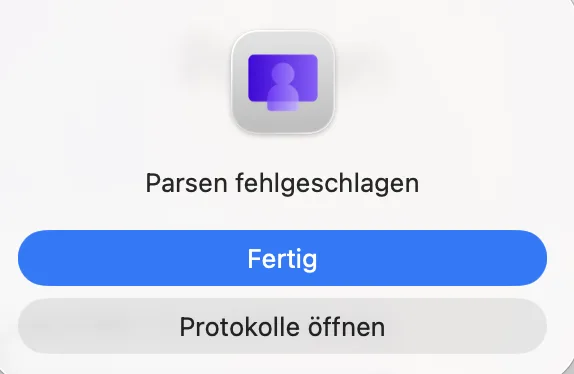
Während des Parsings zeigt die Applikation eventuell die Meldung “Parsing failed”.
In manchen Fällen beendet sich der Workspace ONE Admin Assistant unmittelbar danach von selbst.
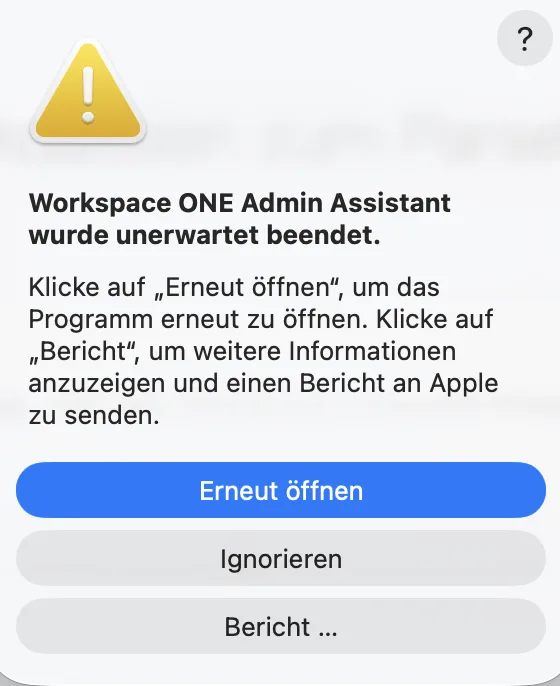
Das sieht so aus, als wäre der Applikations-Installer schuld. Es kann aber ebenso an fehlenden macOS Berechtigungen liegen. macOS schränkt den Zugriff von Applikationen auf geschützte Orte wie den Ordner «Dokumente» ein. Fehlt dem Workspace ONE Admin Assistant diese Berechtigung, schlägt das Parsing fehl und die Applikation beendet sich unerwartet.

Die Lösung

Öffne die Systemeinstellungen auf dem Mac und geh zu:

Datenschutz & Sicherheit
→ Dateien und Ordner
→ Workspace ONE Admin Assistant

Klapp den Workspace ONE Admin Assistant auf.

Dort sollte diese Berechtigung stehen:

Ordner «Dokumente»

Schalte den Schalter für den Ordner «Dokumente» ein.

Danach schliesst du den Workspace ONE Admin Assistant, öffnest ihn neu und startest das Parsing noch einmal.

Wie weiter

Wenn du bis hierher gelesen hast, läuft es bei dir vermutlich immer noch nicht. Melde dich bei uns, wir helfen gerne.
Passt ausserdem